Claude AI Integration (OnePageCRM MCP)

Claude can work directly inside your OnePageCRM account. Once connected, ask for what you want in your own words, and Vibe does it in the CRM, whether that's pulling up a contact, logging a call, moving a deal, or writing a follow-up.


  • You need a paid Claude account to connect it to OnePageCRM.
  • You need an active OnePageCRM account.

In this article:

Connect OnePageCRM to Claude
Connect OnePageCRM to Claude Code


Connect OnePageCRM to Claude


1
In Claude, click on Customize.

Claude | Customize


2
Go to Connectors → Add → Browse connectors.

Claude | Customize | Connectors | Add | Browse connectors


3
Look up OnePageCRM → click on it → Connect to Claude.

Claude | Browse connectors | OnePageCRM


4
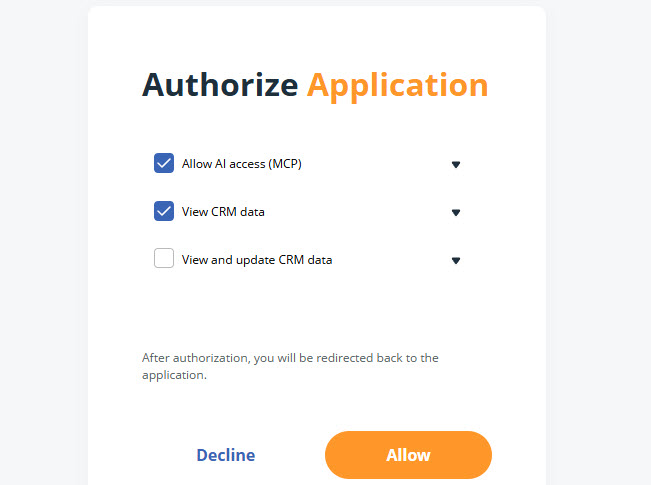
Sign in to OnePageCRM → select the access level → click Allow.

  • Allow AI access (MCP) (required)
  • View CRM data (required)
  • View and update CRM data (optional)
  • OnePageCRM | Authorize AI tool


    3
    To ask questions about your CRM data, type @OnePageCRM in the chat.

    Claude | Chat enquiry


    💡 You may be asked to allow the AI to access your CRM data.


    Connect OnePageCRM to Claude Code

    Jump up to Article's Overview ⮝

    1
    In Claude Code, open the terminal and run the following command:
    claude mcp add --transport http OnePageCRM https://app.onepagecrm.com/mcp
    

    2
    Start Claude Code with `claude` → run `/mcp` → select OnePageCRM and Authenticate.

    3
    Sign in to OnePageCRM → select the access level → click Allow.

  • Allow AI access (MCP) (required)
  • View CRM data (required)
  • View and update CRM data (optional)
  • OnePageCRM | Authorize AI tool

    Did this answer your question? Thanks for the feedback There was a problem submitting your feedback. Please try again later.

    Still need help? Contact Us Contact Us