
Create Custom Buttons
Custom Buttons let you send information from OnePageCRM to another app using a URL. For example, you can create a button that sends contact details to another app to create a quote, invoice, or estimate.
- OnePageCRM provides examples and technical guidance here.
- A software engineer or a level of IT experience is needed to set this up.
- If you require support, contact us here.
In this article:
| What are Custom Buttons? |
| How to create Custom Buttons |
| Available URL variables |
| Requirements |
What are Custom Buttons?
Custom Buttons pass data from OnePageCRM to another app.
👉 For example: A button could pass a contact's name and organization to another app:
example.com/name=[VARIABLE]&organization=[VARIABLE]
When the button is clicked, the variables are replaced with the relevant information from OnePageCRM.
💡 Custom Buttons can be created for Contacts or Deals.
How to create Custom Buttons
Jump up to Article's Overview ⮝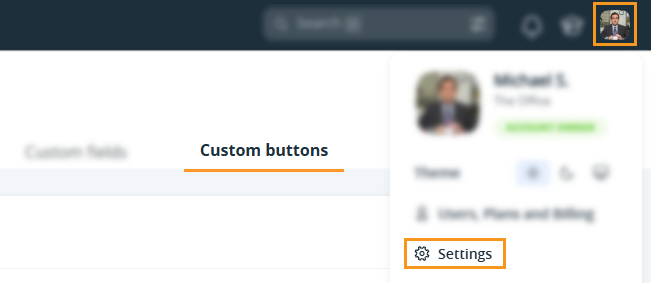
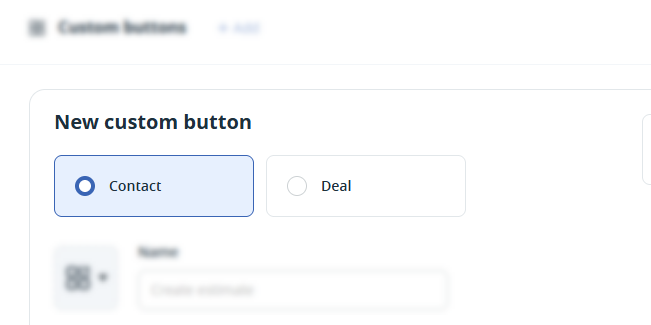
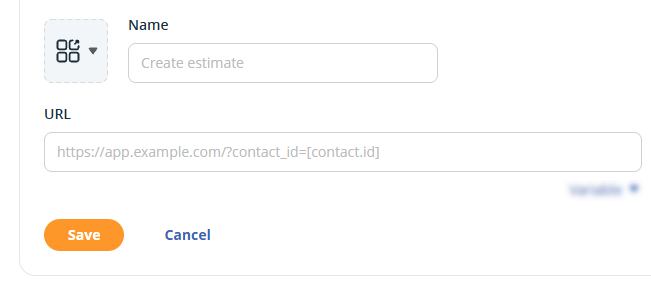
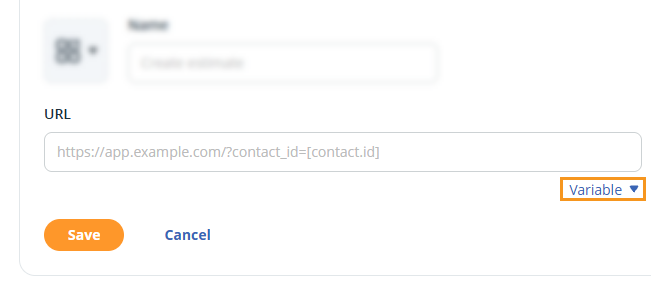
Available URL variables
Jump up to Article's Overview ⮝You can use the following fields from OnePageCRM as URL variables:
| Contacts | Organizations |
|
First Name Last name Full name Title Jobtitle Phone X / Twitter Contact ID Address Contact Custom Fields |
Organization name Organization ID Organization Custom Fields Deals Deal name Amount Total amount Deal ID Deal Custom Fields |
Requirements
Jump up to Article's Overview ⮝Custom Buttons require some technical setup:
- The receiving app must accept data through URL parameters
- You need to know which parameter names that app expects.
- Data is passed in the web address, which is recorded in your browser history and by the receiving app's server. Avoid sending sensitive information, and use an https:// address to encrypt it in transit.