Create and use Meta Templates

Meta Templates are pre-approved message templates used to send WhatsApp messages to customers. They are useful as part of the WhatsApp Business Sync integration in OnePageCRM.


Use Meta templates to message new contacts or contacts more than 24 hours after their last message.


In this article:

Create Meta Templates How to insert and map Meta variables


Create Meta Templates

Jump up to Article's Overview ⮝
1
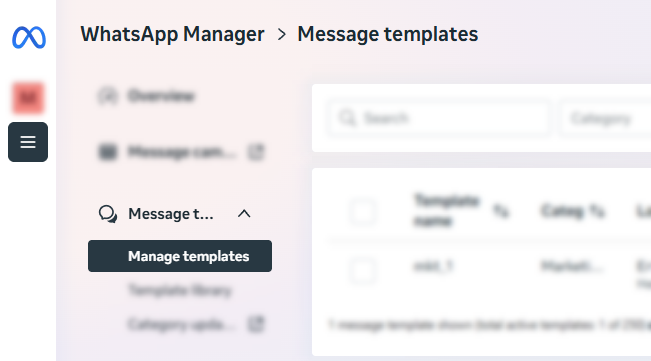
Log in to Meta Business Suite → go to WhatsApp Manager → Message templates.

Meta Business Suite | WhatsApp Manager | Message Templates


2
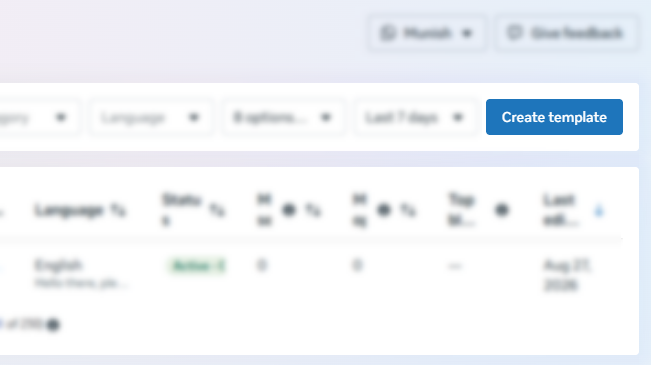
Click Create Template → fill in the fields.

  • Choose a category
  • Enter a template name
  • Select the language for your message
  • Meta Business Suite | WhatsApp Manager | Message Templates | Create a Template


    💡 Calling permission requests are not supported.

    💡 Location Media is not supported.

    💡 Complete Flow buttons are not supported.

    3
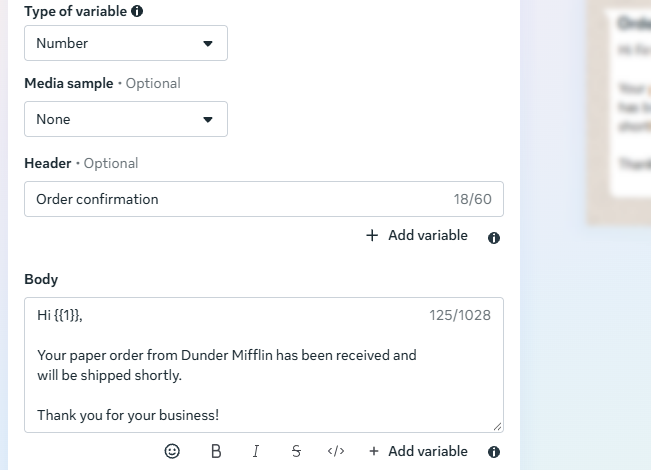
    Add the message text and variables as needed.

    Meta Business Suite | Create a Template | Message Body


    💡 Media samples can optionally be included.

    4
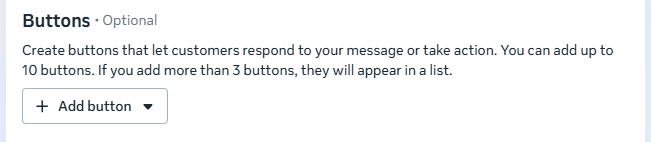
    Optionally, create buttons that let contacts respond to messages or take action.

    Meta Business Suite | Create a Template | Buttons


    5
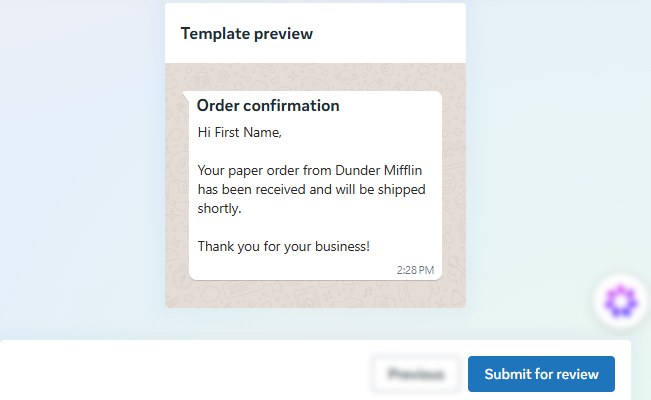
    Submit it for approval by Meta.

    Meta Business Suite | Create a Template | Submit for review


    💡 Approval can take up to 24 hours.


    How to insert and map Meta variables

    Jump up to Article's Overview ⮝
    1
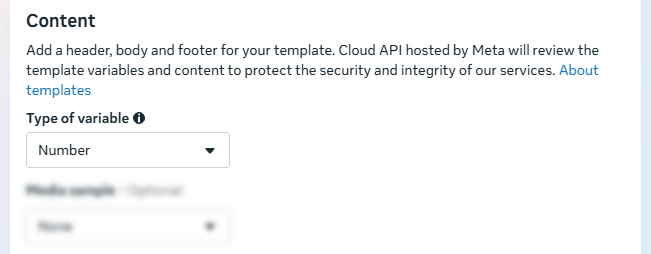
    In Meta Business Suite, create a WhatsApp message template → select the type of variable.

  • Number
  • Name
  • Meta Business Suite | Create a Template | Type of variable


    2
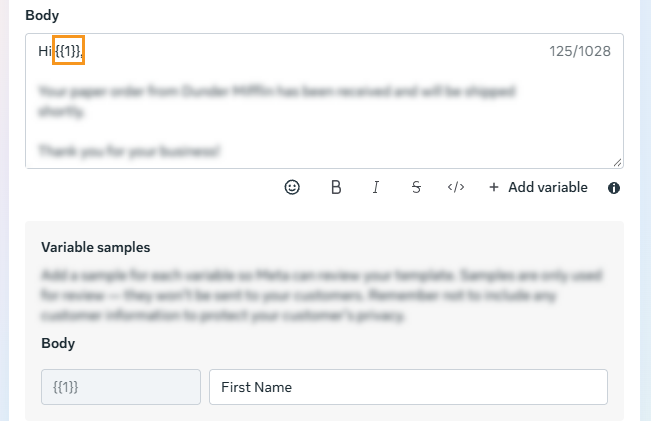
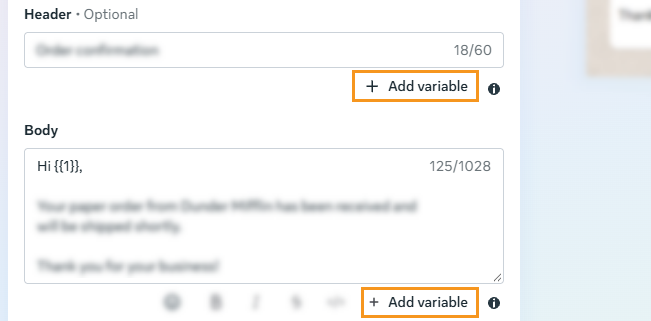
    Add in the message body and click on + Add variable in the appropriate place.

    Meta Business Suite | Create a Template | + Add variable


    3
    Add Variable samples.

    Meta Business Suite | Create a Template | Variable samples


    4
    When the template has been approved by Meta, go to OnePageCRM.

    5
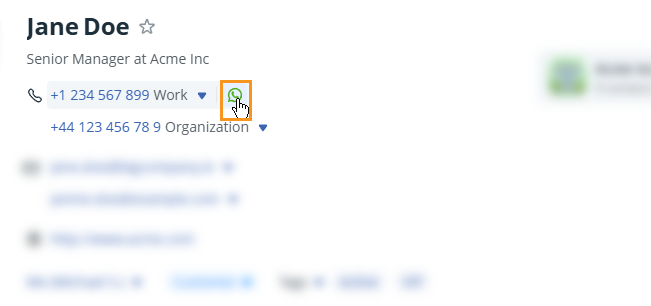
    Open a contact → click the WhatsApp button.

    Contact | Phone number | WhatsApp quick button


    6
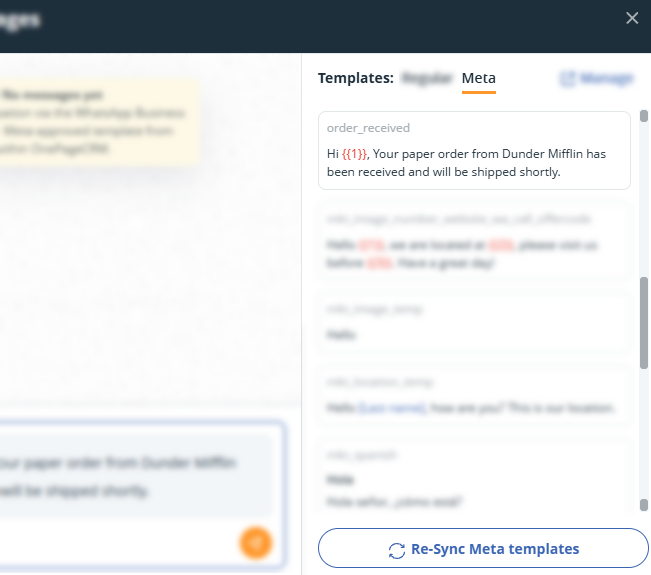
    Click on Meta → Re-Sync Meta templates → select the template.

    OnePageCRM | New WhatsApp message | Meta templates | Re-Sync Meta templates


    7
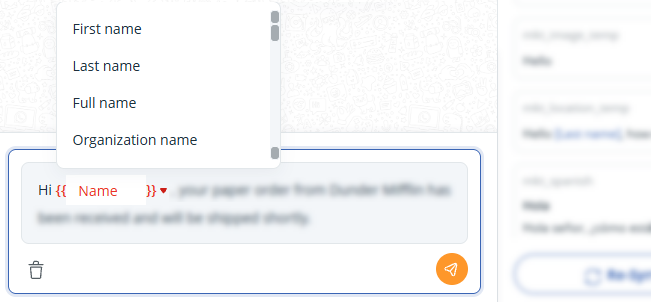
    In the text box, click the variable placeholder → select an option from the dropdown.

    OnePageCRM | New WhatsApp message | Map variable


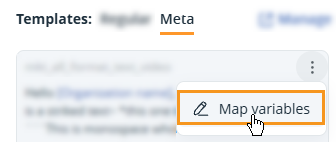
    💡 Alternatively, map variables from the side panel → 3-dots → click Map variables.
    Did this answer your question? Thanks for the feedback There was a problem submitting your feedback. Please try again later.

    Still need help? Contact Us Contact Us