
WhatsApp is a messaging and voice-over-IP service owned by Meta. It lets you send texts and voice messages, make calls, and share files.
You can now use WhatsApp directly from your OnePageCRM account to save time and reduce clicks.
In this article:
| Call and Messages for WhatsApp |
| Send a WhatsApp message |
| Call using WhatsApp |
Configure Call and Messages for WhatsApp
| Configure Click to Call | Configure Click to Message |
Configure Click to Call
Click-to-call lets you open your WhatsApp account to initiate a call by clicking on the contact’s phone number in OnePageCRM.
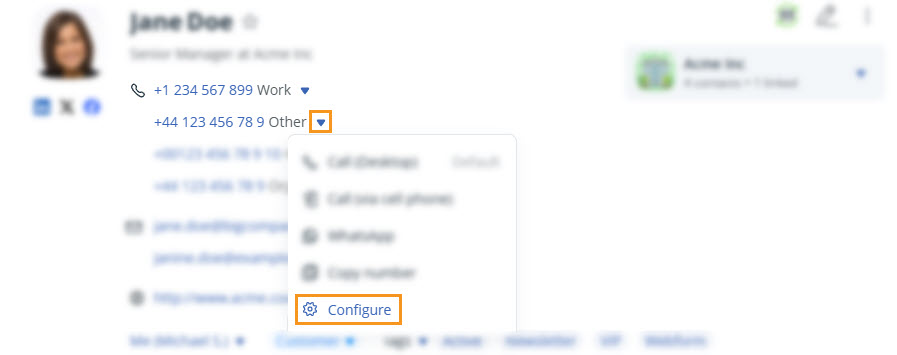

💡 Enable the Quick button to make a call more quickly.
Configure Click to Message
Click-to-message lets you send a WhatsApp message by clicking on the contact’s phone number in OnePageCRM.

💡 Ensure to enable the WhatsApp Quick button as well.
Send a WhatsApp message
Jump up to Article's Overview ⮝
💡 If WhatsApp isn’t set up, you’ll be redirected to log in to WhatsApp Web or download the desktop app.


💡 If you're using the desktop version, you will have the option to call from here, too.
💡 Create text message templates for a quick outreach to contacts.
Call from WhatsApp
Jump up to Article's Overview ⮝


💡 Enable the Quick button to make calls more quickly.
💡 All numbers should be prepended with the country code. It won't work otherwise.
💡 The + special character before the number is optional. It cannot be replaced by 00 (double zero).
💡 WhatsApp messages and calls will not be stored automatically in your OnePageCRM account.
💡 You can only call from the desktop version of WhatsApp.