Emails in mobile CRM (iOS and Android)
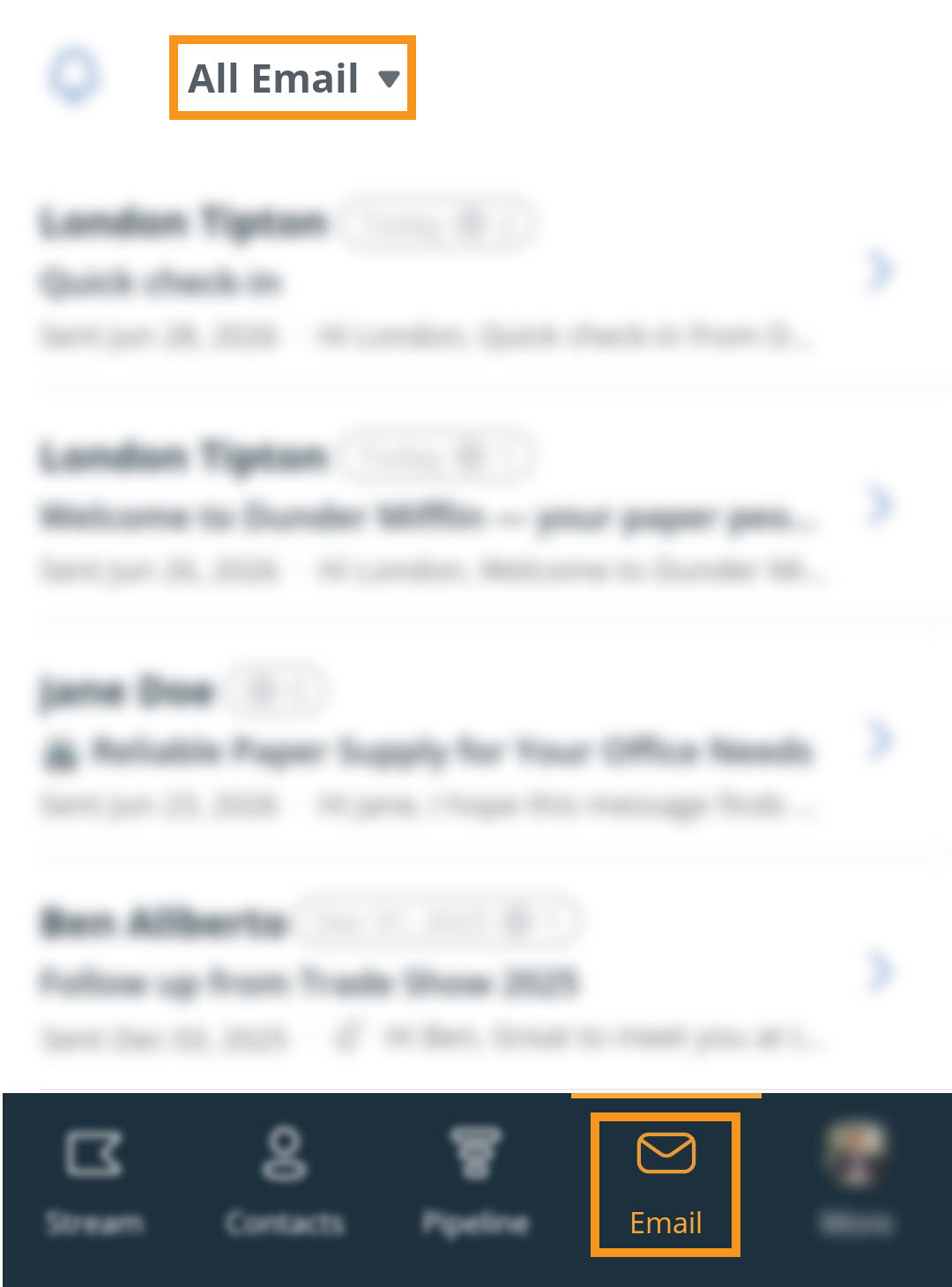
Learn how to view and filter emails in the OnePageCRM mobile app, including open email tracking to stay on top of contact engagement.
In this article:
| Send emails from mobile | Open Tracking on mobile |
| Access Emails on mobile | Filter Emails |
Send emails from mobile
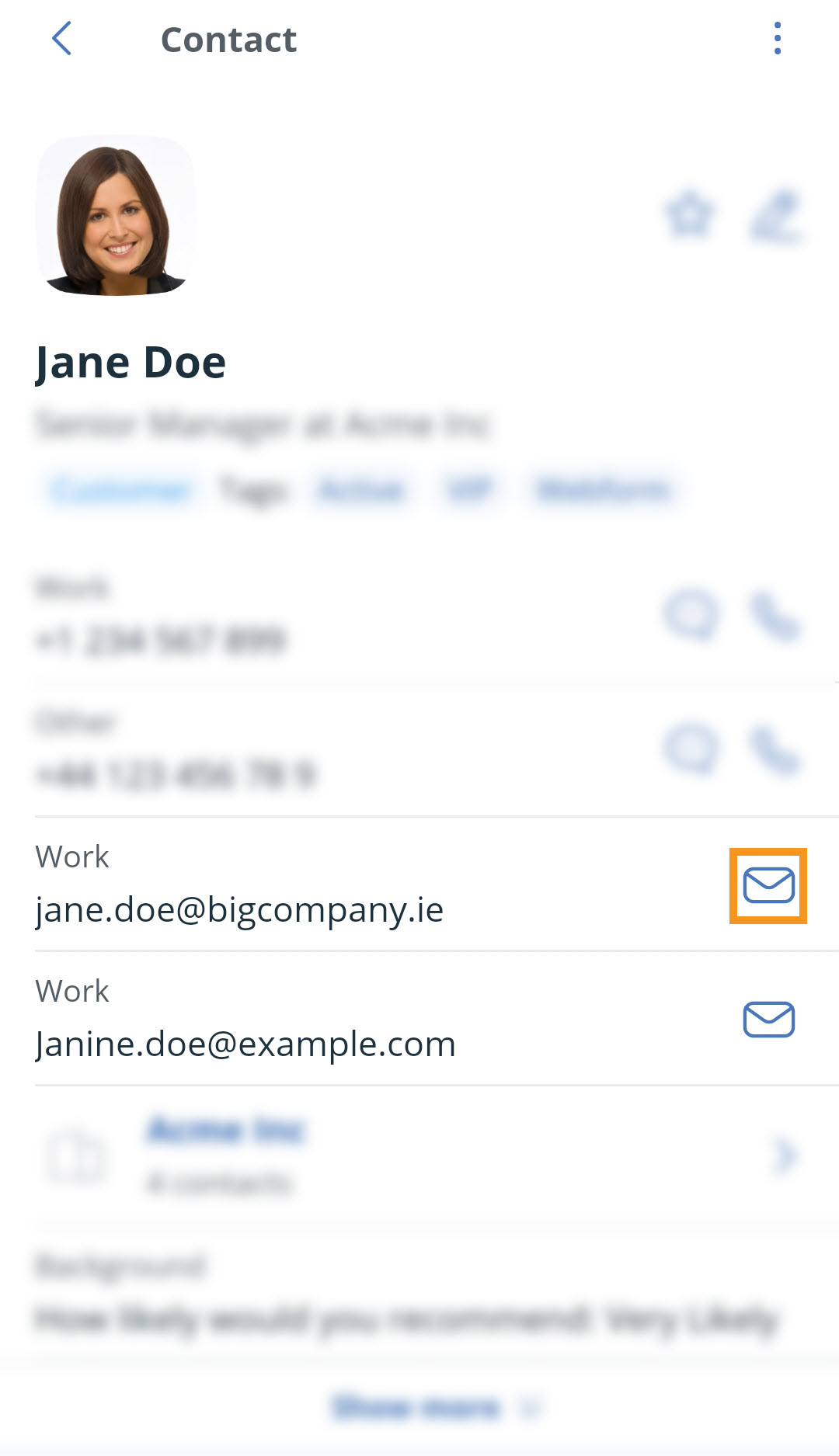
💡 If no default email app is set, you may be prompted to choose an app.
💡 iOS users can set their default email app in More > Settings.
💡 Emails are only automatically stored if sent from your connected 2-way sync email account.
Access Emails on mobile
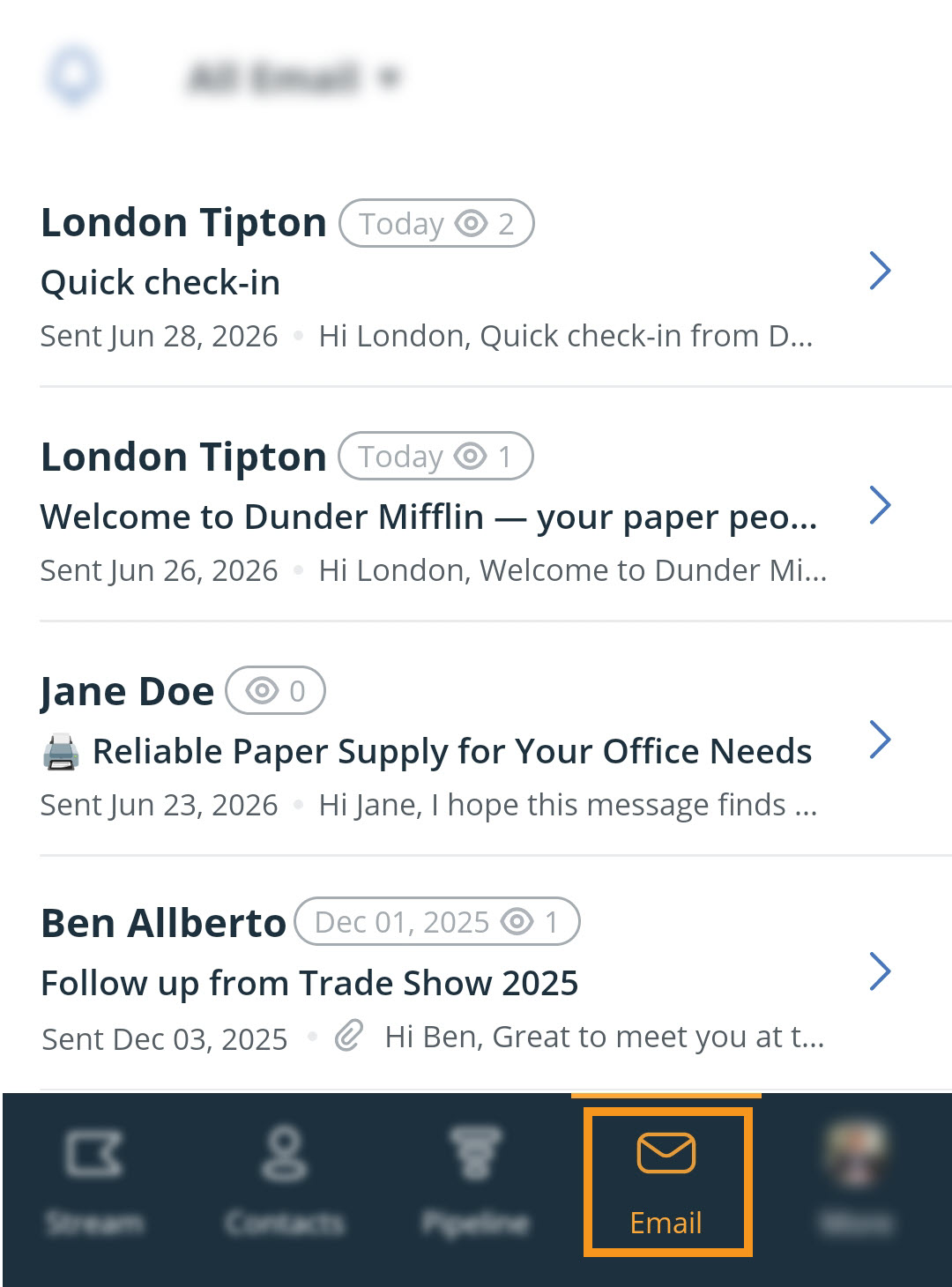
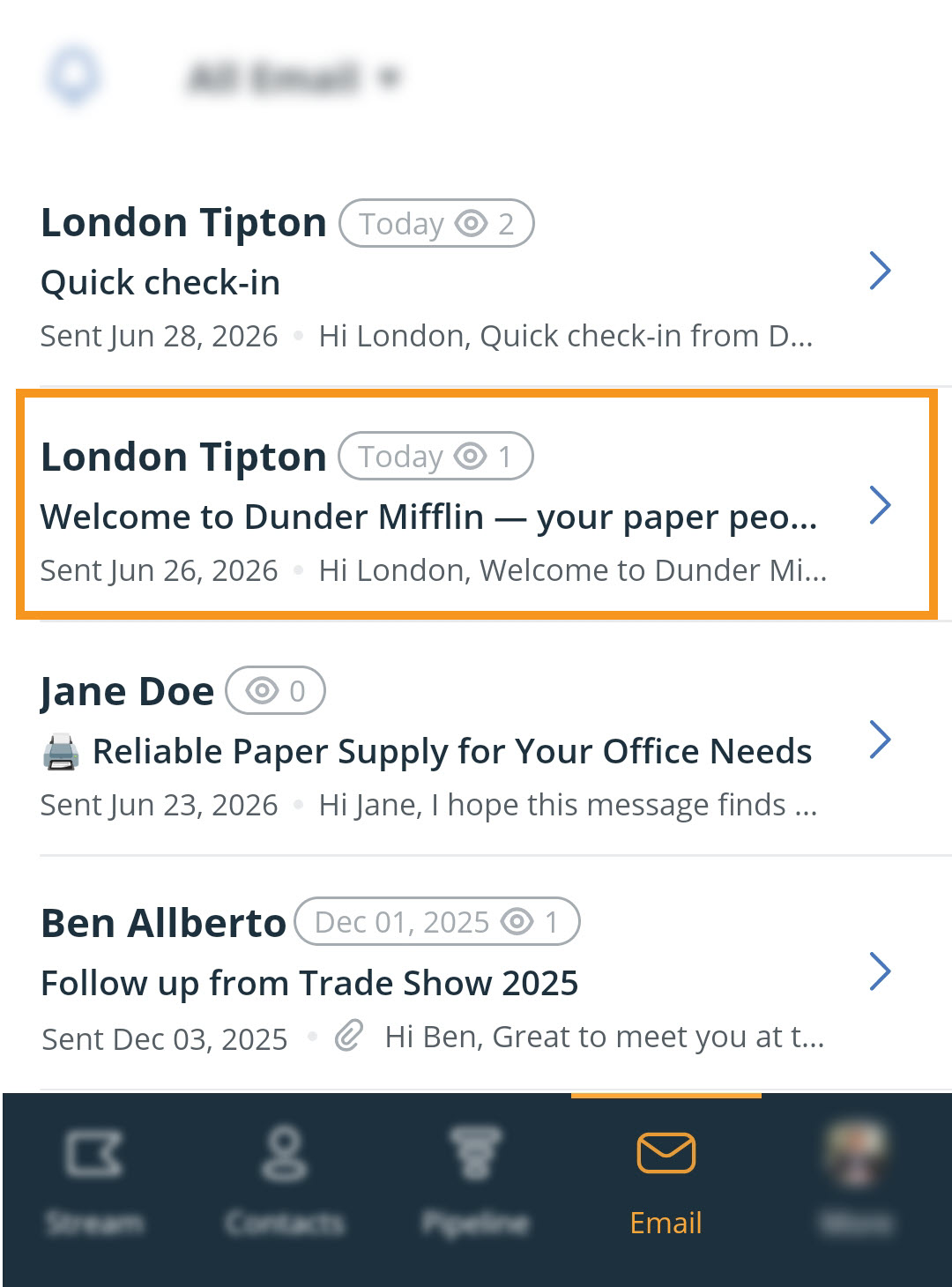
💡 Click the contact name to open the profile.
💡 Click the bin icon to remove the email from the CRM.
💡 To view the latest emails, click Reload Data under More.
💡 Emails are also visible on the contact’s profile.
Open Tracking on mobile
Track email opens in the mobile app, including how often it was opened and the last open date.
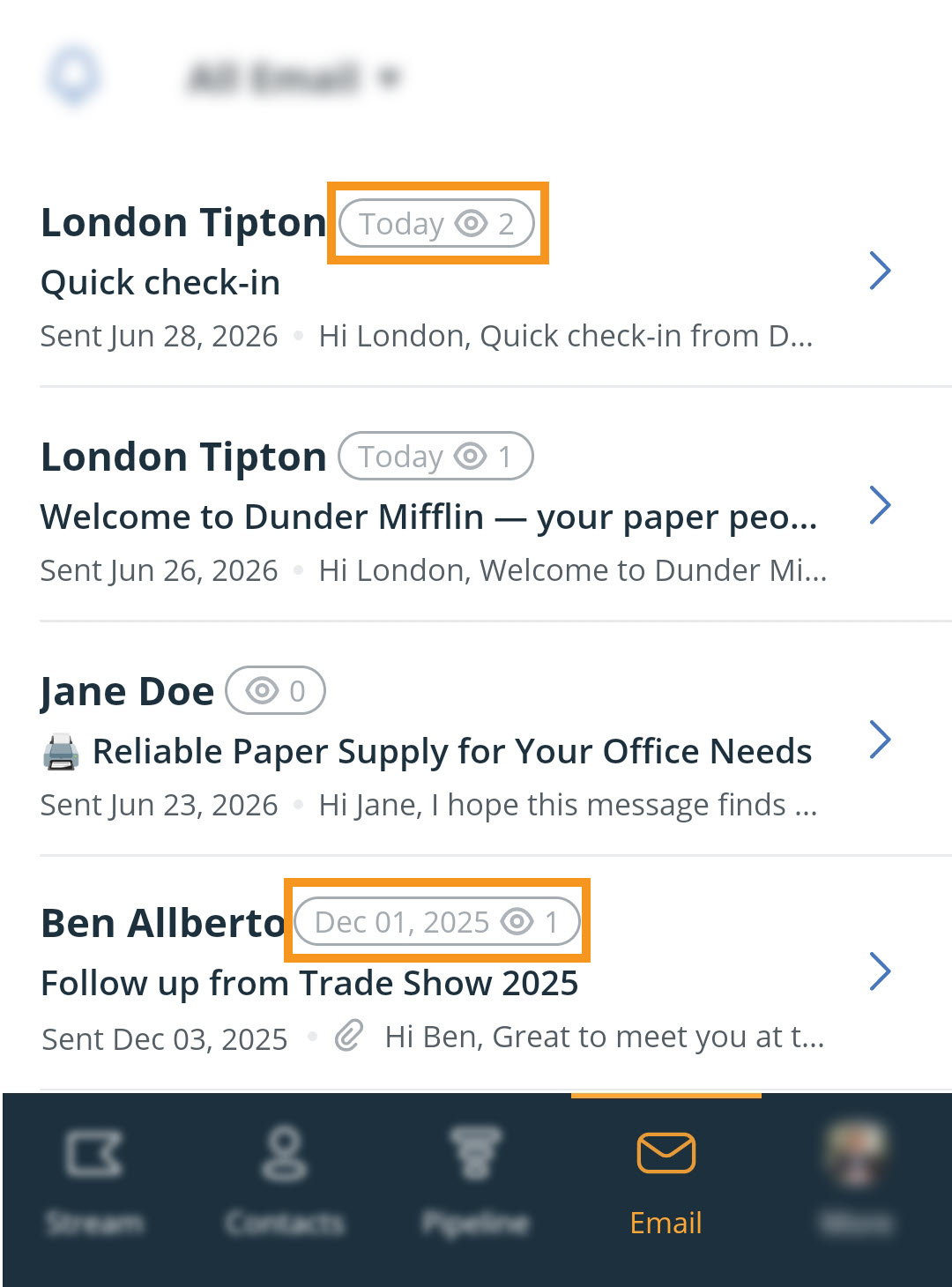
💡 To view the latest openings, click Reload Data under More.
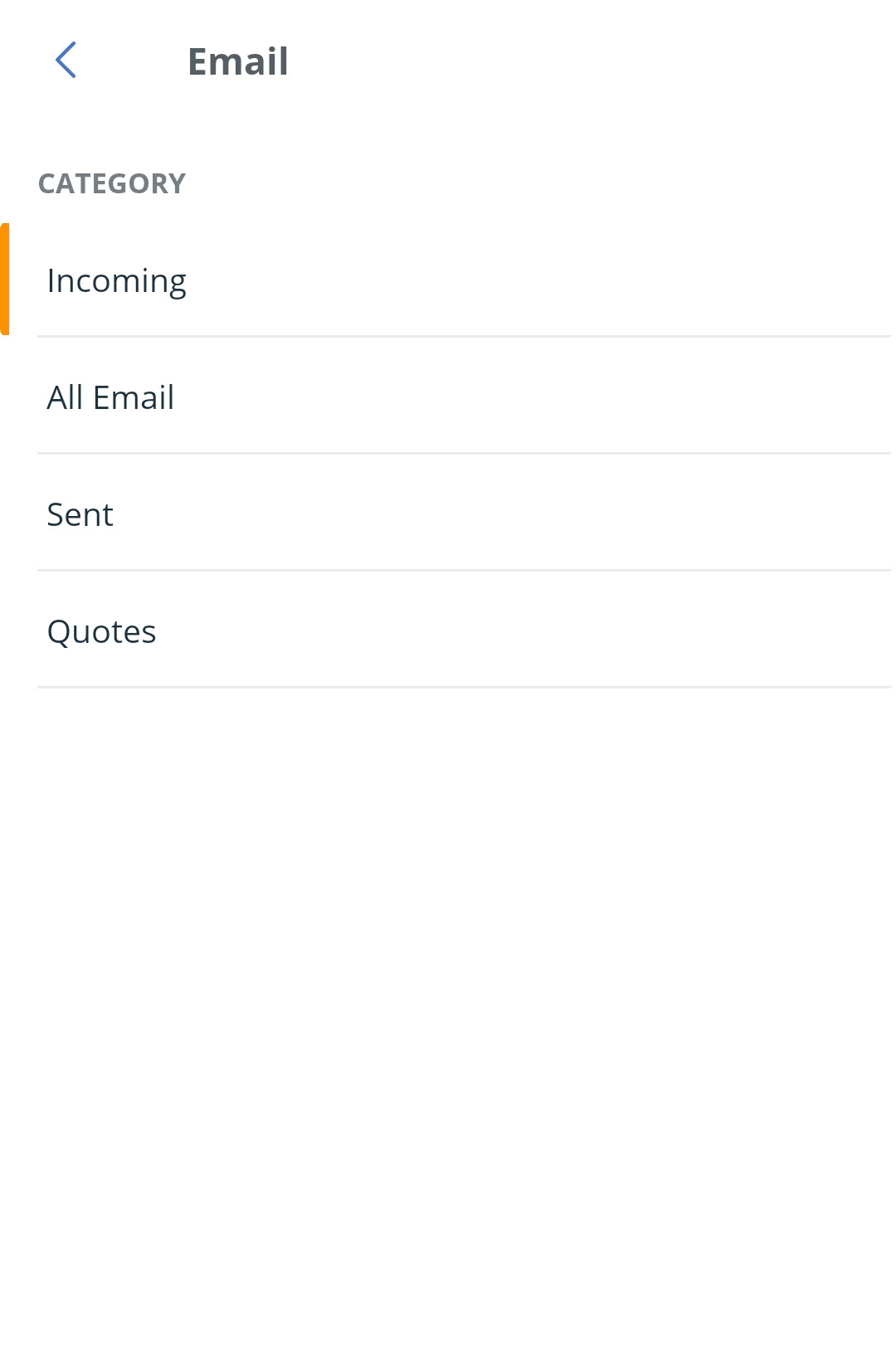
Filter Emails