Perplexity AI Integration (OnePageCRM MCP)
Connect Perplexity to OnePageCRM using an MCP server to securely access and work with your CRM data directly from Perplexity.
It only takes about five minutes to set up Perplexity as your small business AI assistant.
- You need a paid Perplexity account to connect it to OnePageCRM.
- You need an active OnePageCRM account.
1
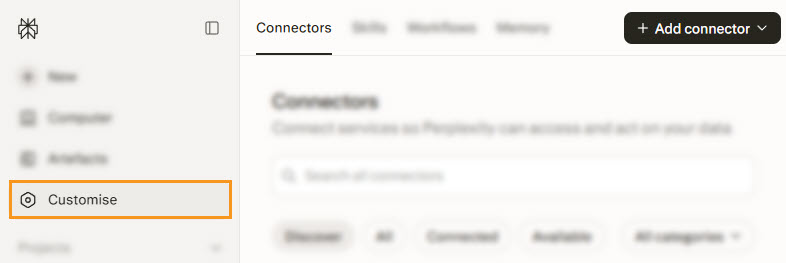
In Perplexity, click Customize → Connector.
2
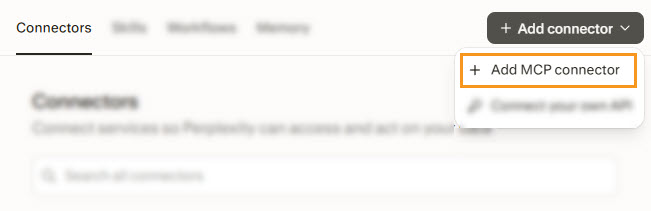
Click on Add custom connector → + Add MCP connector.
3
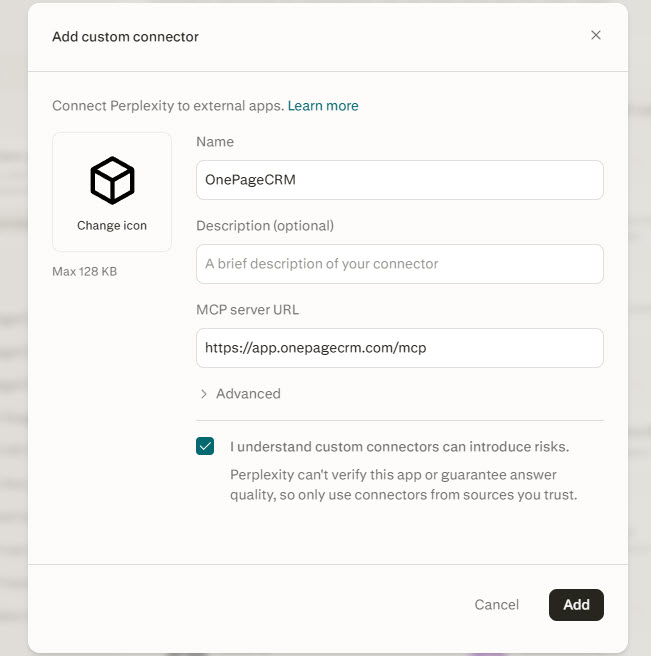
Paste the details into the pop-up and click Add.
Name - OnePageCRM
MCP server URL - https://app.onepagecrm.com/mcp
4
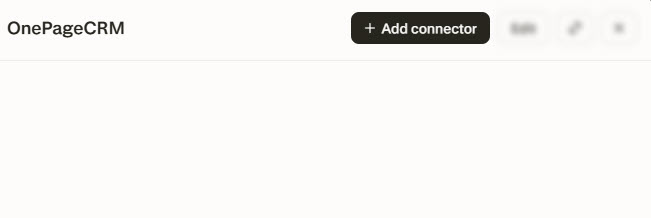
On the Connector page → open the OnePageCRM connection → +Add connector.
5
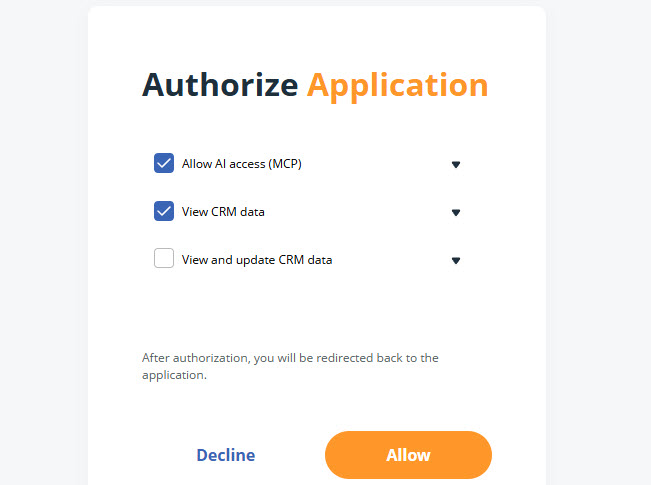
Sign in to OnePageCRM → select the access level → click Allow.
Allow AI access (MCP) (required)
View CRM data (required)
View and update CRM data (optional)
6
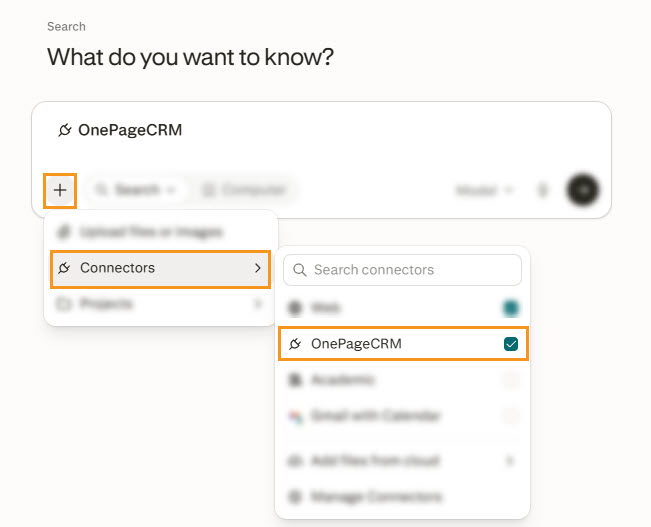
Open a new Perplexity chat → click + icon → Connectors → tick OnePageCRM.
💡 Custom connections work only in Perplexity’s web and desktop apps.

