
Push Next Actions to gCal or Outlook
OnePageCRM lets you focus only on tasks that are relevant to your business.
However, you can push time-specific Actions from OnePageCRM (for example, an on-site client meeting) to a calendar app of your choice.
In this article:
| Push actions to Calendar |
| How actions are organized in the Calendar |
Push actions to calendar
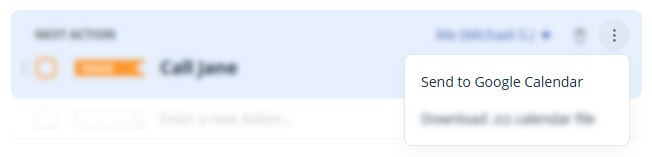
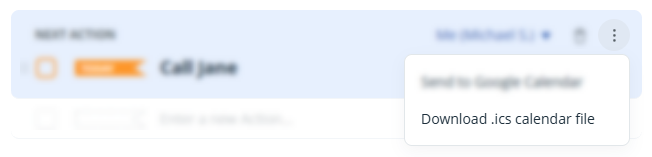
💡 Calendars that support .ics files, e.g., Outlook, Yahoo, Apple, etc.
How actions are organized in the Calendar
Jump up to Article's Overview ⮝Pushed sales actions are positioned in your calendar depending on their date type:
| Date type/Date flag | Position |
|---|---|
| ASAP/Waiting |
The date and the next 30-minute time slot are allocated when the action is pushed. 👉 A sales action at 14:34 on 19 Feb 2025 appears in the 15:00–15:30 slot that day |
| Action with a date | The event will be placed as an All Day event on that date. |
| Action with date & time | The event will be placed in the specified time slot on that date. |
💡 When sending actions to your calendar from OnePageCRM, the following contact data is pushed:
- Name
- Next Action text and date / Date & time
- Phone numbers and Address
💡 Automatically push all actions to a Calendar using the Calendar Feed (Google, Outlook 365, or Apple ).