
How to create Custom Reports
Custom Reports give you an overview of activity in your OnePageCRM account:
- Generate, save, and email reports
- Monitor your team’s performance
- Stay on top of your sales
Max plan: up to 50 saved reports
Business plan: up to 30 saved reports
Professional plan: up to 10 saved reports
Legacy plan: up to 3 saved reports
In this article:
| Generate a Custom Report | Download a Custom Report |
| Save/Email Custom Reports | Modify, Configure, or Delete a Custom Report |
| Run a Custom Report |
Generate a Custom Report
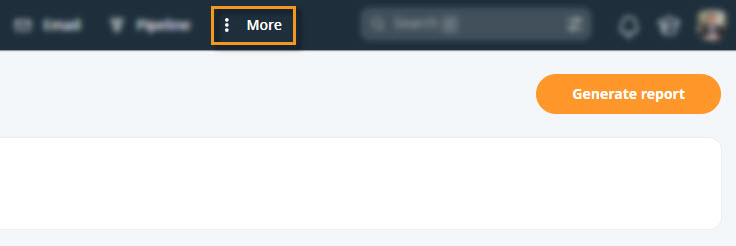
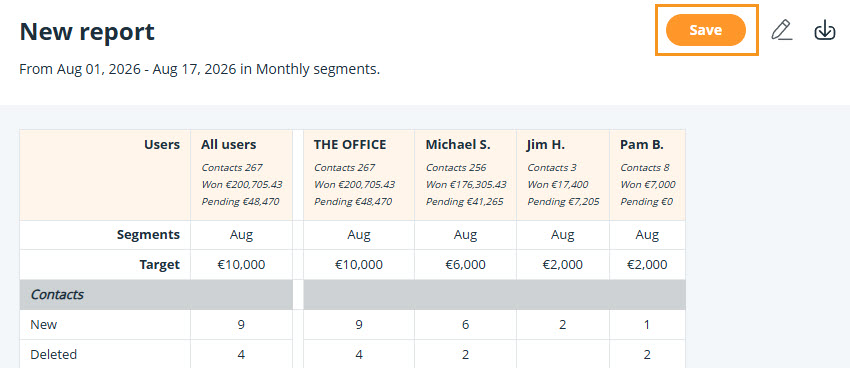
💡 Edit the report by clicking the pencil icon.
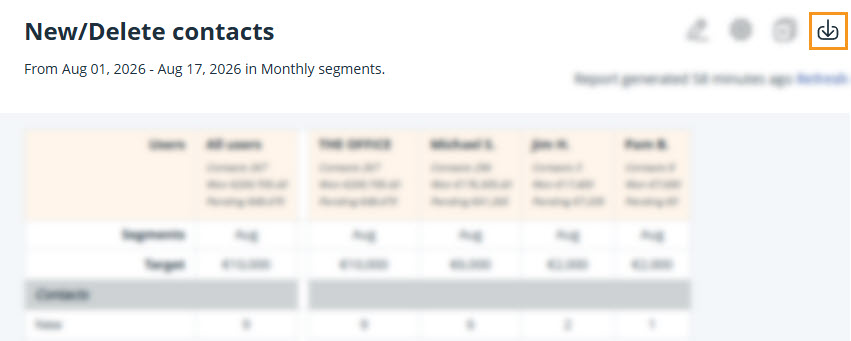
💡 Download the report by clicking on the downward arrow.
💡 Save the report to run it again later and, optionally, email the report.

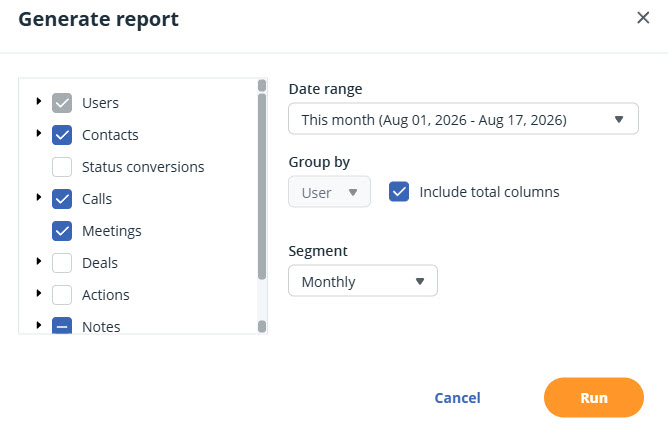
Overview of available criteria:
- Users
- Contacts: New or deleted contacts during the time period
- Status conversions: Any time you or a team member changed the status of contacts
- Calls: By call result
- Meetings
- Deals: New, Won, Lost, Commission Margin (if Cost is enabled)
- Actions: New, Completed, Edited
- Notes: Created, Edited
- Emails: Sent and received
Refine your report:
- Group by: User (pre-selected)
- Check the Include total columns checkbox
- Segment
Save/Email Custom Reports
Jump up to Article's Overview ⮝💡 You can run unlimited reports, but the number you can save depends on your plan.
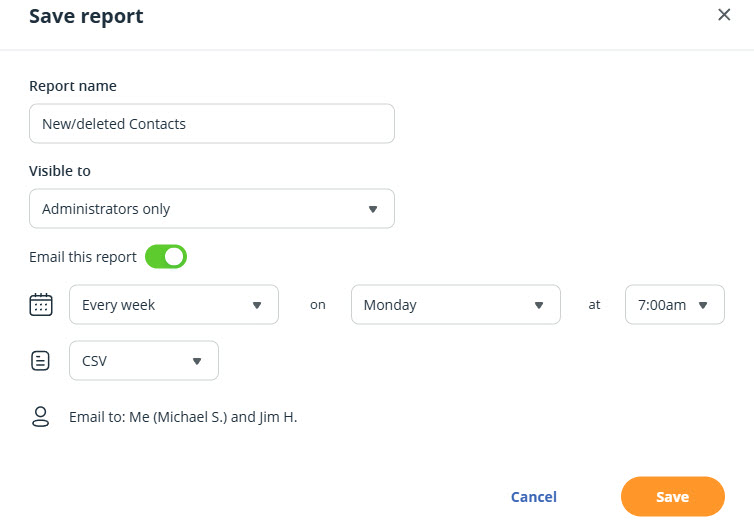
💡 Users must have View Activity page permission to receive the email. See User Permissions for details.
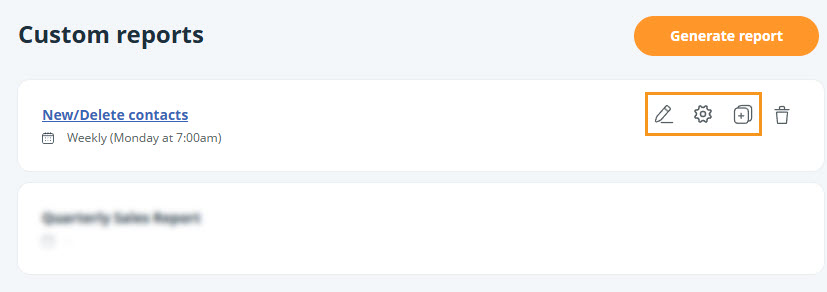
💡 Saved reports appear in the Custom Reports page.
💡 Modify, configure, and/or clone saved reports.
💡 Configure email alerts from the Custom Reports page via the gear icon
Run a saved Custom Report
Jump up to Article's Overview ⮝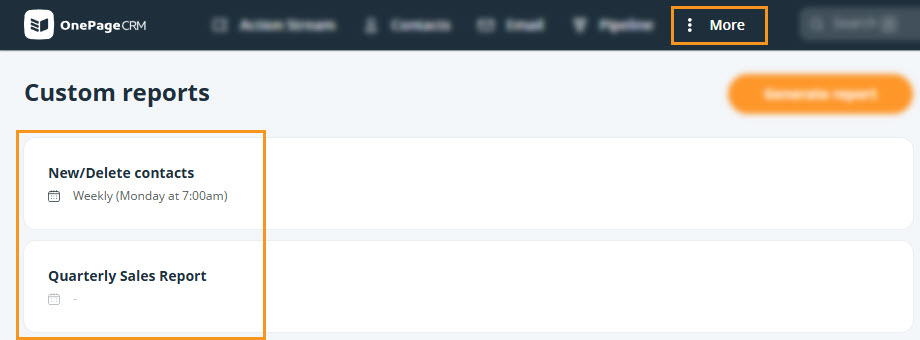
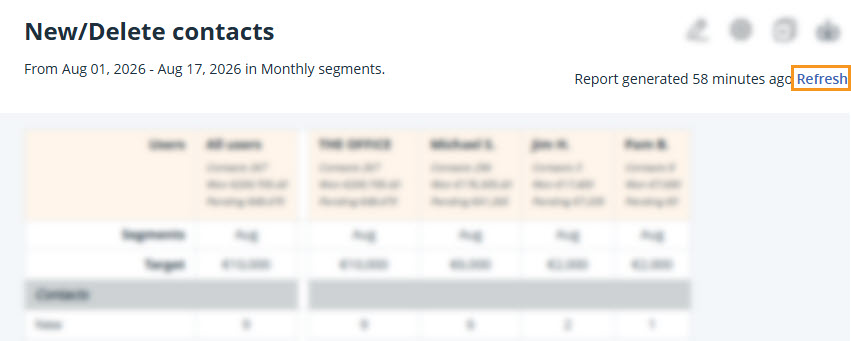
Download a Custom Report
Jump up to Article's Overview ⮝Click the downward arrow (↓) to download the report as a CSV or Excel file.
Modify, Configure or Delete a Custom Report
Jump up to Article's Overview ⮝Custom report settings can be updated to suit your reporting requirements.
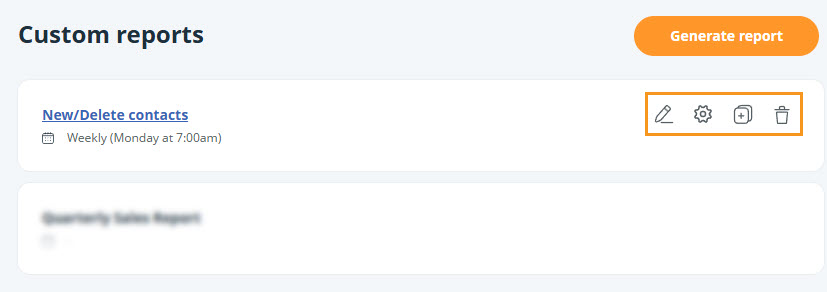
Go to Custom Reports → hover over a saved report:
- Modify - Click the pencil icon
- Configure - Click the gear icon
- Duplicate - Click the clone icon
- Delete - Click the bin icon
💡 You can configure a report to be sent to all or specific users.
💡 Users need the required permission to create, edit, or receive reports.
💡 If a report is set to Visible to all users, anyone can run it.