How to star a contact in OnePageCRM
In OnePageCRM, if you have contacts that are high priority, you can star them.
Your starred contacts can be accessed by all users from the Star filter in the menu on the left-hand side of your Action Stream/Contacts tab.
In this article:
| Star a contact | Where to find your starred contacts |
| Remove the star from a contact | How to find contacts starred by other users |
| Add/remove a star in bulk |
|
How to star a contact
Click the star icon beside the contact name → the star icon will become yellow.
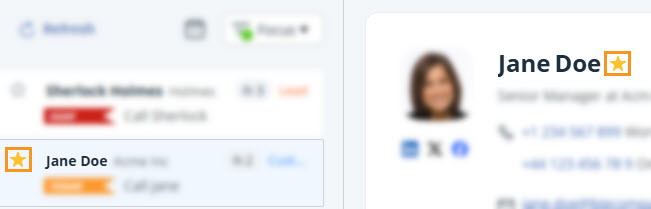
💡 This can be done on the Action Stream, Contacts page, and Contact profile directly.
How to remove the star from a CRM contact
Jump up to Article's Overview ⮝Deselect the yellow star icon beside the contact name → the star icon will become white.
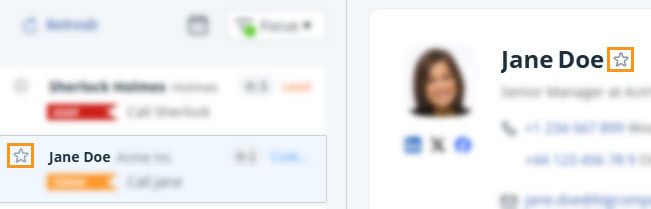
💡 This can be done on the Action Stream, Contacts page, and Contact profile directly.
How to add/remove a star from CRM contacts in bulk
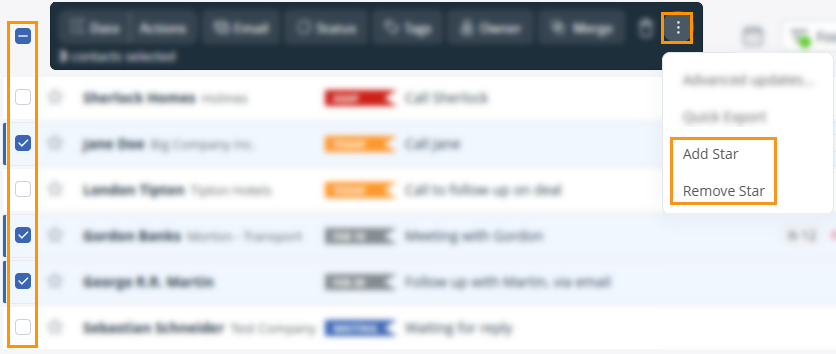
Jump up to Article's Overview ⮝Select the contacts by their checkboxes → select the 3-dot menu at the top.
- Add Star
- Remove Star
Where to find your starred CRM contacts
Jump up to Article's Overview ⮝All starred contacts can be found under the Starred filter on the Action Stream or Contacts page.
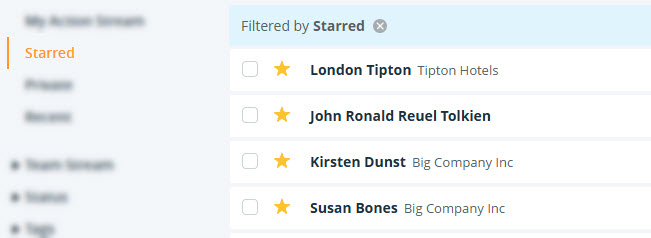
💡 Filter starred contacts by Just me or All:
- Just me – Shows contacts you own or have a Next Action assigned to you.
- All – Shows all contacts you’ve starred.
💡 To find contacts starred by other users, use Advanced Search.
How to find CRM contacts starred by other users
Jump up to Article's Overview ⮝
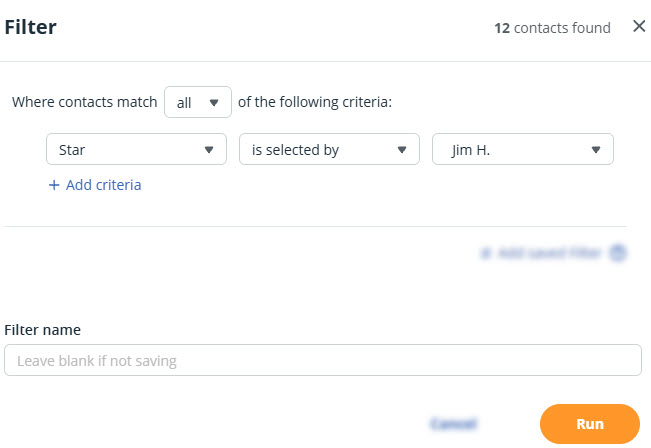
💡 Each user has their own starred contacts. Other users’ starred contacts won’t be starred for you.
💡 Focused Users can only star and view contacts they own.
💡 Exports don’t show which contacts are starred.
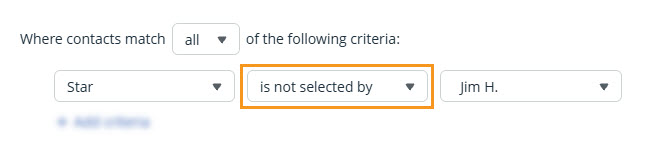
💡 Run an Advanced Search for contacts not starred by a user and select is not selected by.