
Quick Quotes: Send email-based sales quotes
The Quick Quotes feature allows you and your users to quickly generate and send sales quotes for their deals to contacts, including your product or service details, description, quantity, and price.
Connect to the email sync to use this feature.
In this article:
| Send a quote via email | Edit the Quote Block |
Send a quote via email
Jump up to Article's Overview ⮝Quick Quotes can be sent for pending deals from the Contact Page or Pipeline.
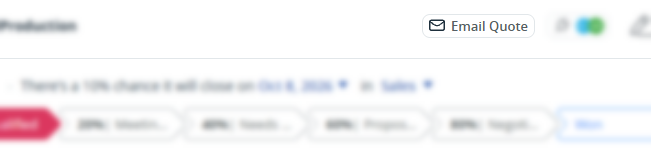
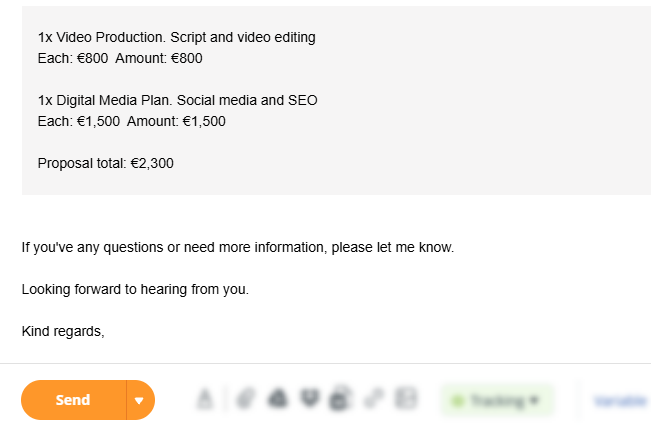
💡 A copy of the email quote is stored in the Contact Timeline for future reference.
💡 Quotes can also be viewed on the Email Page → Quotes folder.
💡 Quick Quotes cannot be created in bulk.
Edit the Quote Block
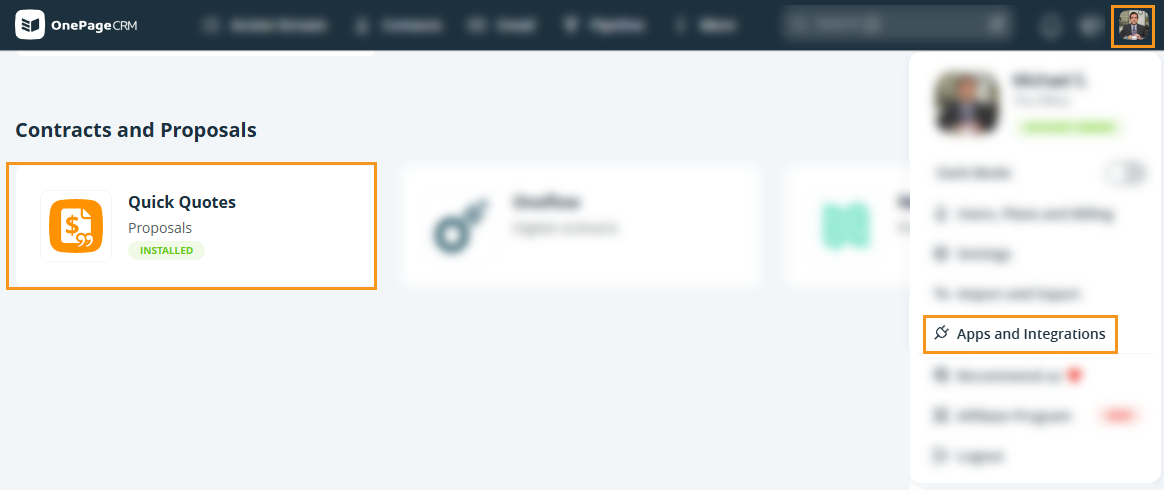
Jump up to Article's Overview ⮝💡 Only the Account owner or Administrator can edit the Quick Quotes template.
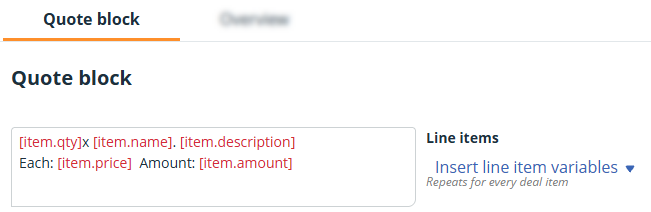
💡 Available Line items variables:
- Item name
- Item description
- Item QTY
- Item price
- Item amount
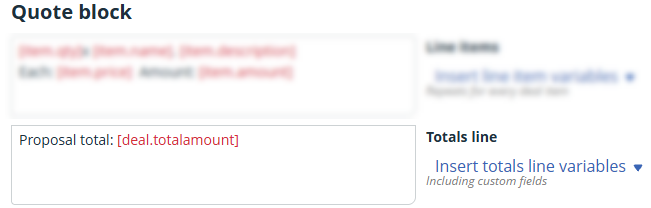
💡 Available Totals Line variables:
- Total amount
- Deal Custom fields
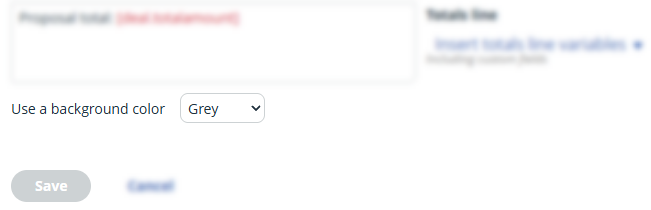
💡 Choose between None, Grey, Yellow, Blue, Green
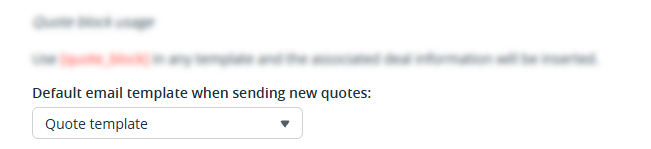
💡 The Quote block can be added to multiple templates, and the associated deal data will be inserted.
💡 Highlight the text and click CTRL and B to make it bold.