Manage sales deals in OnePageCRM with Kanban view

The Kanban view provides users with a comprehensive overview of all ongoing deals within the CRM.

You can easily access and manage your deals here and advance them through your sales cycle.

In this article:

View Deals in Pipeline Move Deals between stages
Deal Cards Archive Won Deals


View Deals on the Kanban Pipeline

Jump up to Article's Overview ⮝

1
Go to the Pipeline Page and select the Kanban view icon (top right-hand side). Here you can see an overview of all active deals in your CRM and their respective deal stage.

Pipeline Page l Kanban View


💡 If you have multiple Pipelines, you will see all deals included in the selected Pipeline. You can choose another Pipeline from the dropdown arrow next to the Pipeline name at the top.


2
To access and edit details of a deal, simply click on a deal card.

Click on any deal card displayed on the Kanban View.


The Deal cards show you the main details about a deal at a glance.

  • Deal name
  • Contact associated
  • Deal amount
  • Expected closing date - Edit the expected closing date for a deal by clicking on the date and selecting a new date from the date picker pop-up window.

Pipeline page l Kanban View l Deal card


💡 If the expected closing date is overdue, it is highlighted in red.


It also indicates if a Next Action is assigned to the associated contact of the deal, and the icon is color-coded:

  • Orange - Due Today
  • Grey - Due in the future
  • Blue - Waiting for
  • Red - Overdue/ASAP
  • Grey dashed outlined - No next action
  • Grey dashed outlined crossed over - Sales cycle closed

The Deal Card displays a flag if a Next Action is assigned and is color-coded in red, yellow, grey, blue, or red.


💡 On the Delivery Pipeline, it will show you:

  • Deal name
  • Contact associated
  • If there is a Next Action assigned and the Next Action Text.


💡 Hover over the Next Action icon to reveal the Next Action text and due date.

💡 Multi-month Deals are marked with a rotating arrow icon, and by hovering over it, it will display details about the recurring deal.


Move deals between Deal stages

Jump up to Article's Overview ⮝

You can easily move deals between deal stages by dragging and dropping them in the Kanban View.


1
Select a deal card and simply 'drag and drop' to your preferred deal stage.

Click and hold to drag and drop a deal card into another Deal Stage.


💡 You can delete a deal or mark it as lost by clicking on the deal card and dragging it to the Trash can icon or Lost field above the Kanban View.

💡 Manual sorting applies (your deal will remain in the same position as you dropped it unless you click the resort icon).


2
Manual sorting applies (your deal will remain in the same position as you dropped it).

Click the resort icon to reorder deals.

Click on the resort icon at the top of the Pipeline page to reorder deals by expected close date or amount.


💡 The third dropdown allows you to choose "On refresh sort by: Expected close date or amount", see here.


A deal can be archived once it has been moved to the Won column of the Sales pipeline or the last stage in the Delivery pipeline.


  • Sales Pipeline - Click on Move and select Archive from the dropdown.
  • Pipeline Page | Sales Pipeline | Click on Move and select Archive


  • Delivery Pipeline - Click on the Archive icon in the deal card.
  • Pipeline Page | Delivery Pipeline | Click on Move and select Archive


    Won deals are archived after 30 days by default. To change this, click on the Gear icon → Configuration select your option click Save.


    You can choose between:

    • After (X amount) of days - The Won deal will be archived after the set number of days has been reached.
    • End of each month
    • Off (archive manually, up to 500 deals)

    Gear icon pop up window l Configuration tab l configure archive deal feature.


    💡 You can hide the Won column from the Kanban view of the Sales pipeline if you wish.

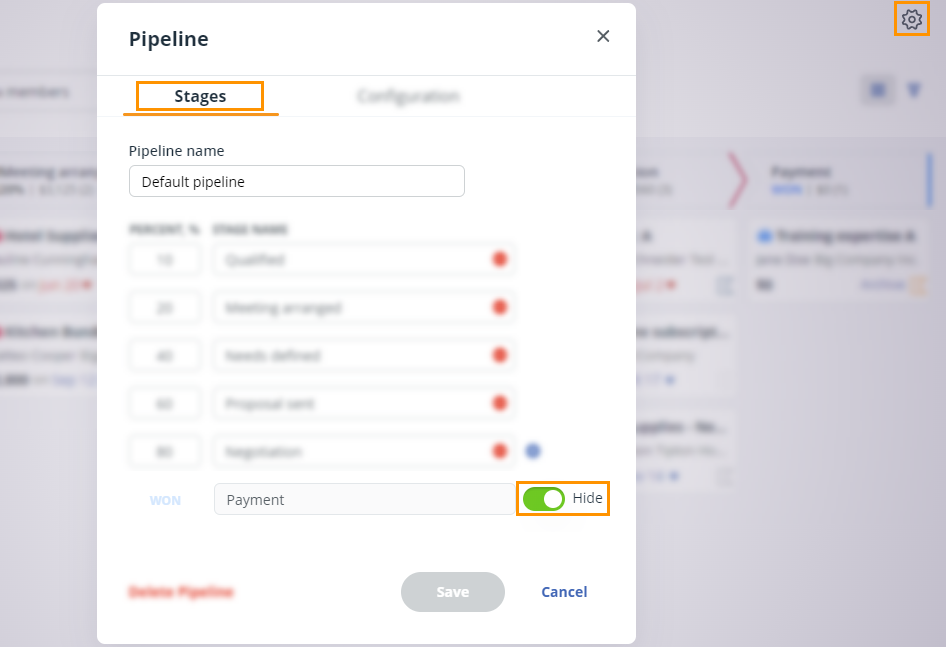
    👉 To do this, click on the Gear icon above the Kanban View → on the Stages tab in the pop-up window at the bottom is the Won deal stage. Toggle the slider to green next to Hide.

    Toggle the hide column by clicking on the Gear icon and using the slider under the Stages tab.


    💡 If there are more than 500 deals in the Won column, they are archived automatically, starting with the oldest.

    💡 Archiving a deal will not delete the Won deal from the account.

    💡 Archived deals can be viewed in the Deal list and on the Contact Timeline.

    Did this answer your question? Thanks for the feedback There was a problem submitting your feedback. Please try again later.

    Still need help? Contact Us Contact Us