
Unbounce
Connect Unbounce with OnePageCRM to automatically add leads captured through your landing page forms as new contacts in your CRM.
New contacts can be automatically assigned a Next Action, Lead source, owner, Status, and Tags, making it easier to organise incoming leads and follow up with potential customers.
- You need a separate Unbounce Account (Classic Unbounce builder).
- Only the Account Owner or Admins can configure and manage the integration.
In this article:
| Connect Unbounce with OnePageCRM |
| Field mapping tips between OnePageCRM and Unbounce |
Connect Unbounce with OnePageCRM
Jump up to Article's Overview ⮝


💡 Some Unbounce form fields map to editable Webhook (POST to URL) fields with the same name. To capture them in OnePageCRM, the Webhook field name must match the OnePageCRM contact field name.
💡 Unmapped fields must be manually matched to a Webhook (POST to URL) field from the dropdown.
💡 If the OnePageCRM contact field isn’t in the Webhook (POST to URL) dropdown, select (+) Add a Custom Field and create one with the same name as in the CRM.
💡 For further details about Field Mapping in Unbounce, see here.
Under Step 4, configure how data is captured for Unbounce leads → Save.

💡 Connect multiple Unbounce landing pages by clicking Add another Unbounce form and following the steps above.
💡 Change the landing page URL in Unbounce by clicking Change URL next to the page address.
💡 To rename a landing page in Unbounce, hover over the name and click Edit Name.
💡 Link multiple landing pages to the same OnePageCRM data capture setting
- Go to Configuration → Step 4 → use the same landing page name.
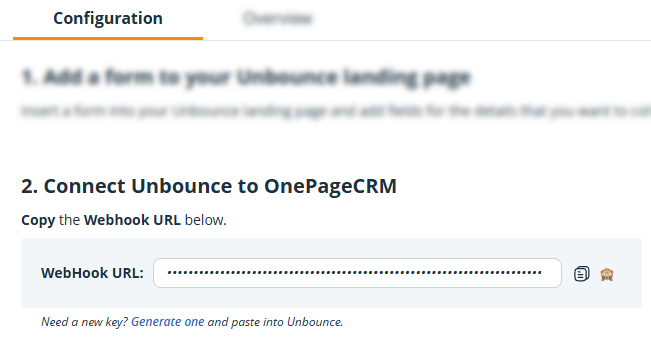
💡 Whenever a new Webhook URL is generated, or the integration is reinstalled in OnePageCRM, update it in Unbounce as well.
- Go to landing page settings → Leads & Form Integrations → Webhook: POST to URL → Change Webhook URL.
Field mapping tips
Jump up to Article's Overview ⮝-
Standard WebHook (POST to URL) fields such as: "first name", "last name", "email", "phone", "website", "address", "country", "state" or "province", "zip" are automatically matched to the same name OnePageCRM contact fields.
- If "name" WebHook (POST to URL) field exists, the first word will be mapped as the first name and any words after this are considered as the last name.
- If the Unbounce landing page form contains "last name" and "name" fields, the first name is taken from the "name" field and the last name is taken from the "last name" field.
-
If the Unbounce landing page form contains "first name" and "name" fields, the first name is taken from the " first name" field and the last name is taken from the "name" field.
-
If you add a multi-line text field and label it "Background" in Unbounce, we will map that field to OnePageCRM's Background field.
-
If you add a Text field and label it Company, Organisation, or "Organization" in Unbounce, we will map that field to OnePageCRM's Organization field.
-
If the WebHook (POST to URL) field name and type in Unbounce have the same name and type as a Custom field in OnePageCRM, we will map them.
E.g., Coupon (Single line) - Unbounce to Coupon (Single line) - OnePageCRM, etc.
- All the form fields that are matched to a non-existing OnePageCRM field are stored as a Note under the contact's timeline.