Create Email Sequences

Use Email Sequences to select templates, schedule multiple emails, and add them to contacts effortlessly, streamlining follow-ups.


Email sequences are available on the Max plan. Upgrade here.


In this article:

Insert/Remove email sequences to contacts
Set up email sequences
Delete email sequences


Insert/Remove email sequences


1
There are two ways to insert an email sequence:
  • By typing in the Next Action text field and selecting an option from the dropdown.

Contact profile | Next Action box dropdown


Or...
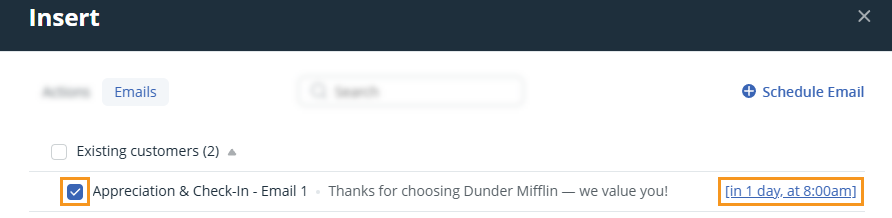
  • Open the Insert pop-up → Emails tab, select one or multiple sequences or scheduled emails from the list → click Insert.

Insert pop-up | Emails tab | select email sequence and click on Insert


2
Once emails are inserted, you can edit them if needed on the Contact page.

Contact profile | hover over the scheduled email sequences under the Next Action box to edit them.


💡 Click on the Date flag to quickly change the date and time the email will be sent at.


Set up email sequences

Jump up to Article's Overview ⮝

1
Open a contact → scroll down to the blue Next Action box → select Insert button.

Contact profile | Insert button above the Next Action box


2
Select the Email tab → click on Schedule email.

Insert pop-up | Email tab | Schedule Email


3
Select email templates and when it should be sent → add a sequence name → click Save.

Select email templates to create an email sequence


💡 Add another email template to the sequence by selecting the blue plus icon (+).

💡 Find more details about creating email templates here.

💡 Email templates used in email sequences need to be marked as visible to all users.

💡 If a template is deleted, it’s removed from email sequences and the Insert pop-up.

💡 All scheduling is based on today’s date.


  • Create new email templates from the Insert pop-up window.
  • Contact profile | Insert pop-up | Schedule email | Create new email template


  • Edit email templates from the Insert pop-up window by clicking on the pencil icon.
  • Contact profile | Insert pop-up | Schedule email |edit email template


  • To delete an email sequence → hover over the sequence → click on the bin icon.
  • Contact profile | Insert pop-up | delete email template


  • Remove emails from a sequence by clicking on the pencil icon of the sequence → select the minus icon (-)
  • Contact profile | Insert pop-up | edit email template

    Did this answer your question? Thanks for the feedback There was a problem submitting your feedback. Please try again later.

    Still need help? Contact Us Contact Us