Import deals

You can import multiple deals into OnePageCRM once your file is saved in a CSV (comma-separated values) file format.


πŸ’‘ To import Deals, each contact must have an email address to link the Deal.

πŸ’‘ Use our import template to easily import deals to the CRM.


You can import the following fields:

  • Deal name
  • Amount
  • Number of months
  • Cost
  • Commission %
  • Commission amount
  • Deal created
  • Expected close date

Deal Custom Fields must be created in OnePageCRM before performing the CRM import.

1
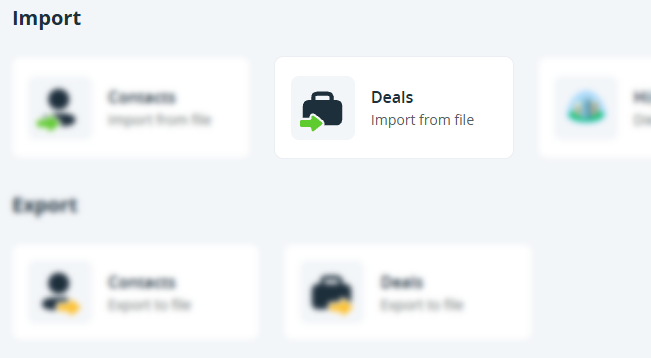
Go to Import and Export β†’ Deals Import from file.

Import and Export | Deals | Import from file


2
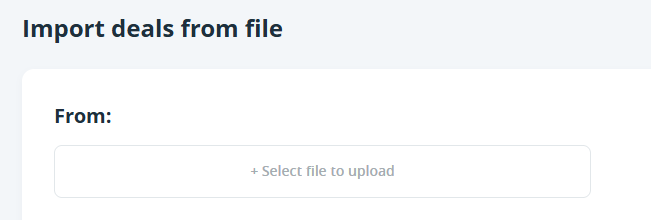
Click on Select file to upload β†’ choose the CSV file you wish to import.

Import Deals | Select file


3
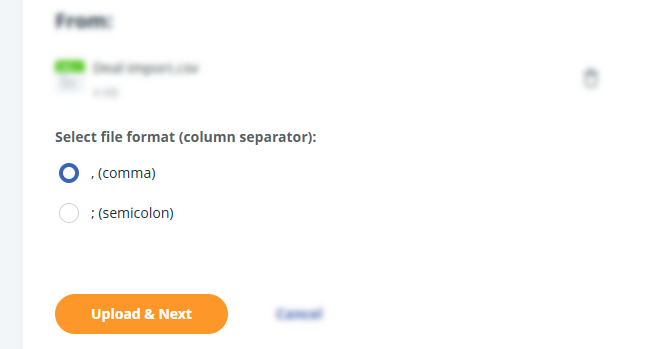
Select file format (column separator) β†’ click on Upload & Next.

  • , (comma) - Use this when your file uses commas to separate values. This is the most common format.
  • ; (semicolon) - Use this when your file uses semicolons to separate values. This is common in some Excel regional settings.
  • Import deals | Select file format


    πŸ’‘ Open your file in a text editor to check the separator.

    4
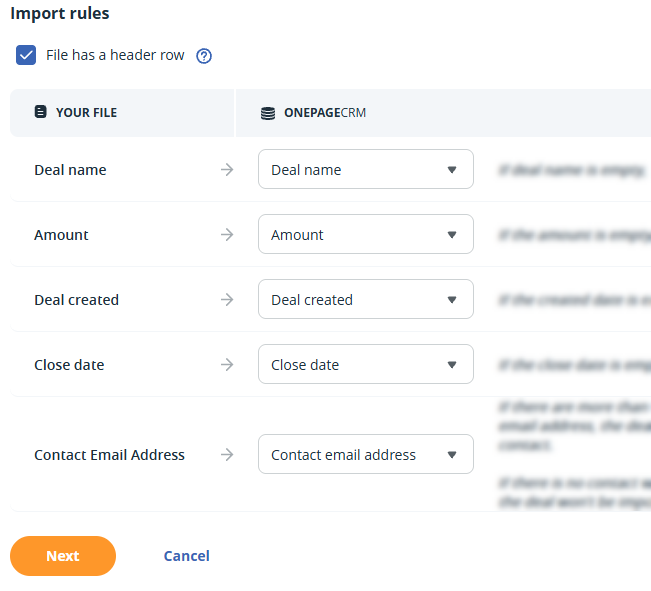
    Under Step 1, match your file columns to OnePageCRM fields β†’ click Next.

    Import deals | Map fields


    πŸ’‘ Each deal needs a Deal name and Email address to be imported into your CRM account.

    πŸ’‘ Tick Ignore for fields you don’t want to import
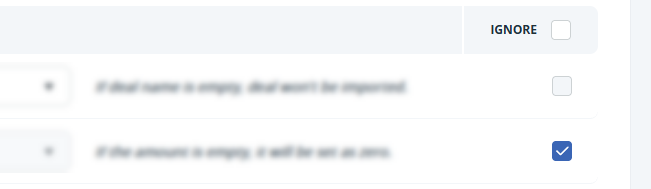
    Import deals | Ignore fields


    5
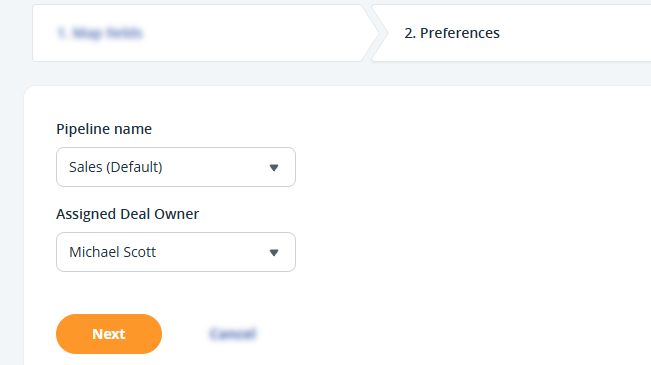
    Under Step 2, select the Pipeline to import these deals into and the deal owner β†’ click Next.

    Import Deals | Preferences


    πŸ’‘ To assign different Deal owners, split the import file into separate batches for each user.

    6
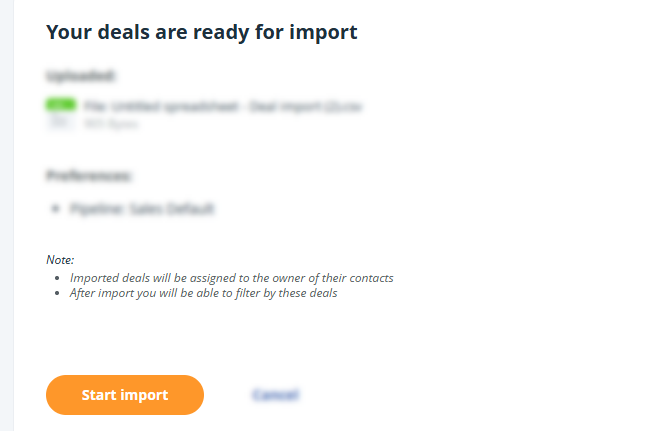
    Under Step 3, review the details of your import β†’ click Start import.

    Import Deals | Start import


    πŸ’‘ Deal Custom Fields must be created before importing.

    πŸ’‘ You can import up to 4,999 Deals or 16 MB at a time. Split larger files into smaller files.

    πŸ’‘ Deal Items can’t be imported through this process. Use Make.com to import or update them.

    πŸ’‘ Undo a Deal import within 24 hours. Go to the Import / Export history β†’ Undo import.

    Import Deals | Undo import

    Did this answer your question? Thanks for the feedback There was a problem submitting your feedback. Please try again later.

    Still need help? Contact Us Contact Us