Edit your email signature
Setting up an Email signature through the Email Sync feature allows you to personalize your emails with a professional touch.
You can include your contact information, job title, company logo, or any other details you deem relevant.
A well-crafted Email signature not only enhances the overall appearance of your emails but also helps reinforce your brand image and credibility.
In this article:
Add/Edit an Email Signature
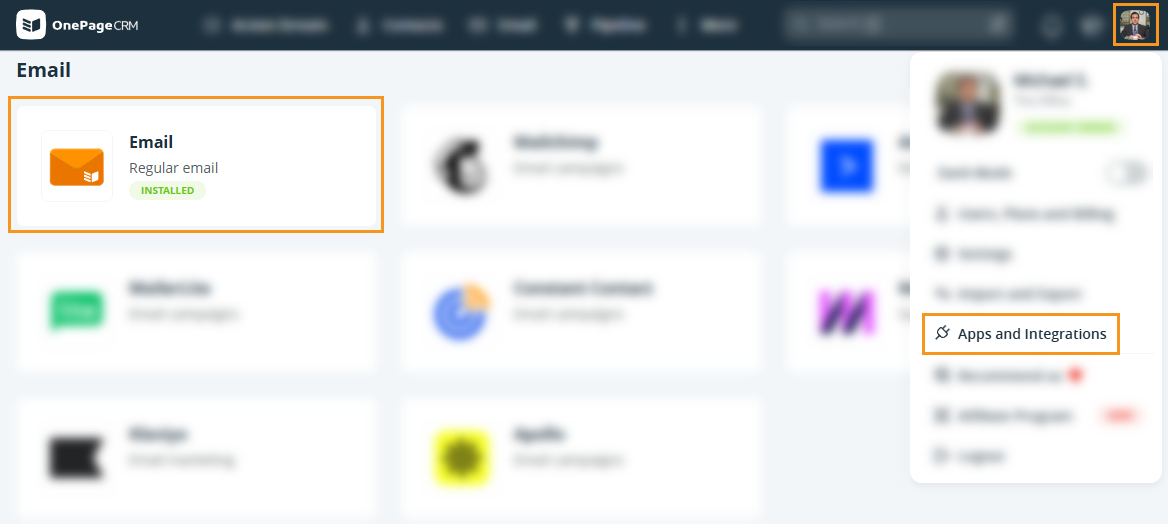
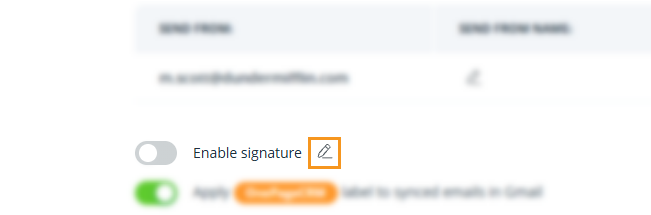
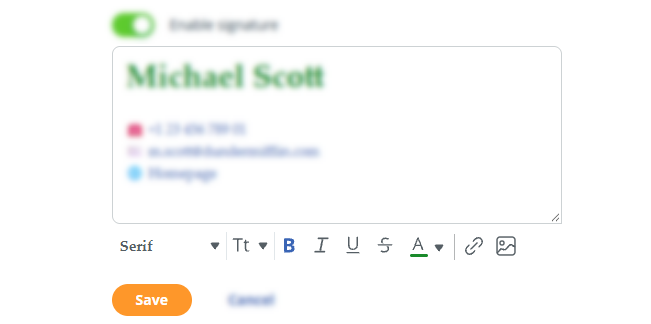
💡 HTML elements are not supported.
💡 Signatures in Gmail will be imported with their original formatting, including HTML.
- Editing will remove the HTML elements
- Update your signature in Gmail, then reconnect Email Sync to import the changes.
Enable/Disable the Email Signature
Jump up to Article's Overview ⮝