Add/Edit/Delete deals in mobile CRM (iOS and Android)
Easily add, edit, and remove deals related to a contact on the go in OnePageCRM's mobile app.
OnePageCRM's mobile app is available on both Android and iOS.
In this article:
Add Deals
1
Open the contact in the mobile app → scroll to the Deals section and click on the plus (+) icon.
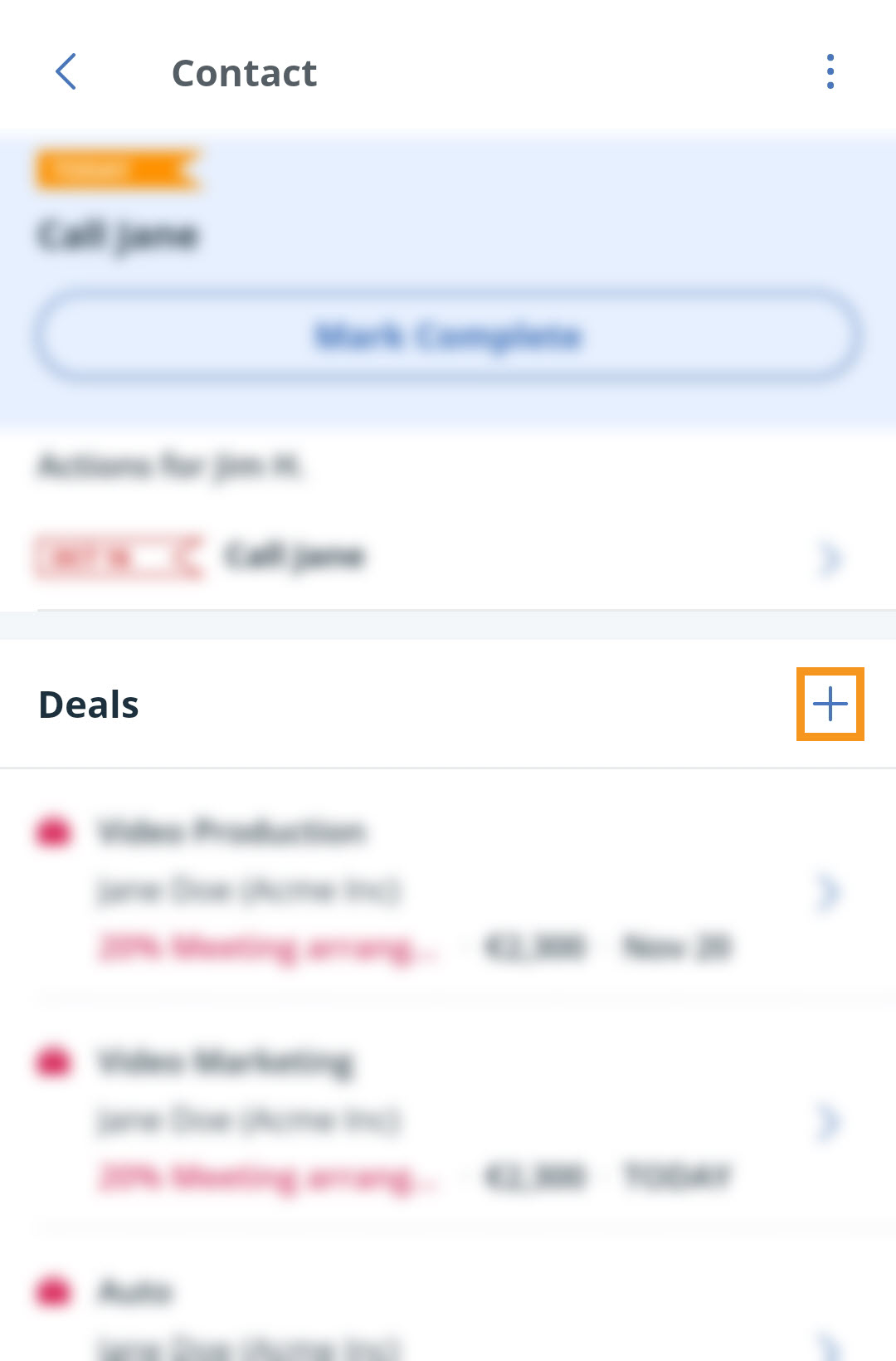
💡 On Android, you can also click on the floating plus icon to create a deal.
2
Add details to the deal.
Enable Commission, Cost, Multi-month
Deal name
Pipeline
Expected Close Date
Amount
Insert Deal Items
Description
Deal Custom fields
Deal owner
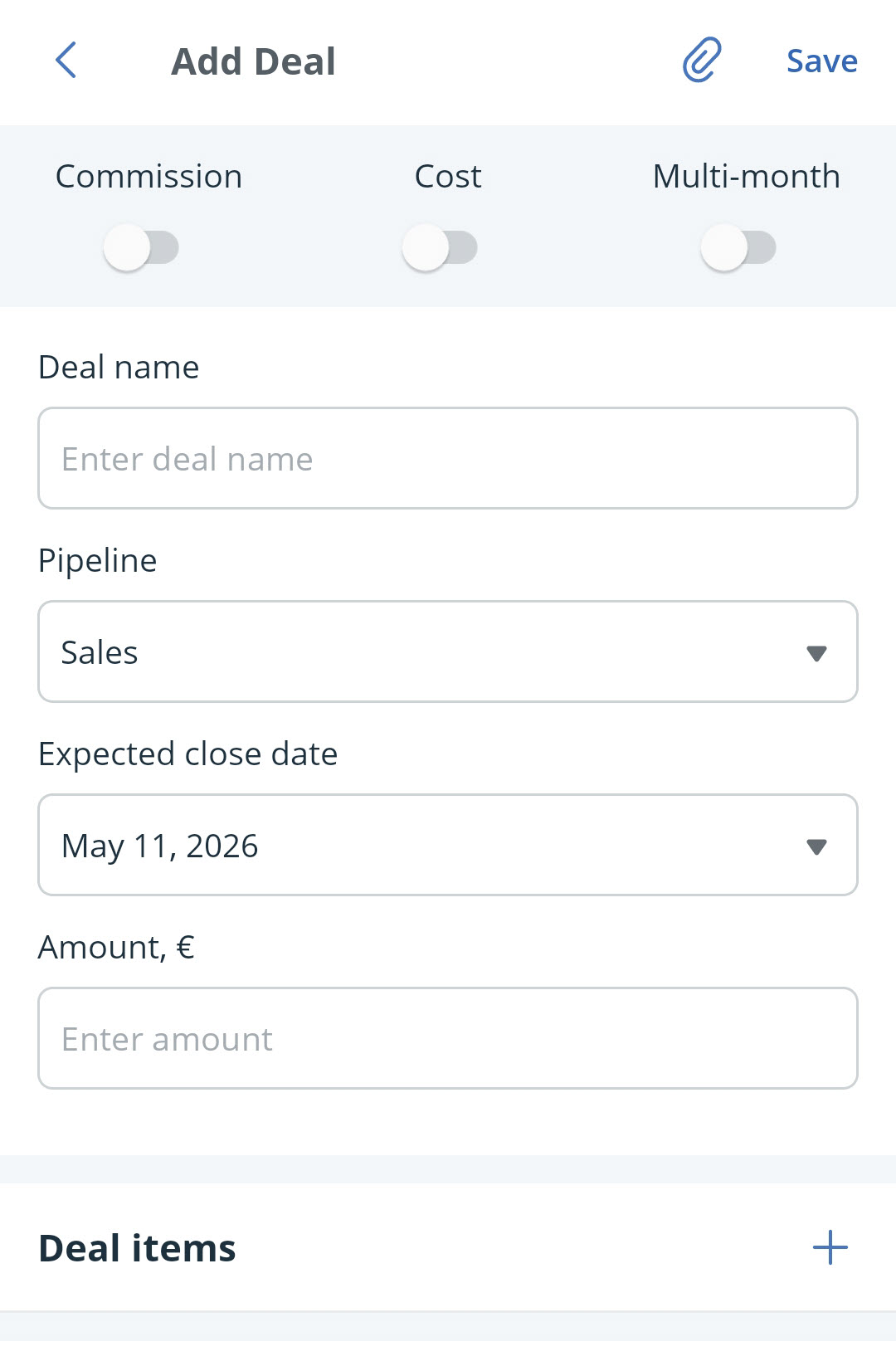
💡 Add attachments by clicking on the paperclip icon.
3
Click on Save.
💡 On iOS, you can swipe left on a deal and tap the bin icon to delete it.
1
Locate the deal on either the Pipeline or Contact profile → click into the deal you want to edit.
2
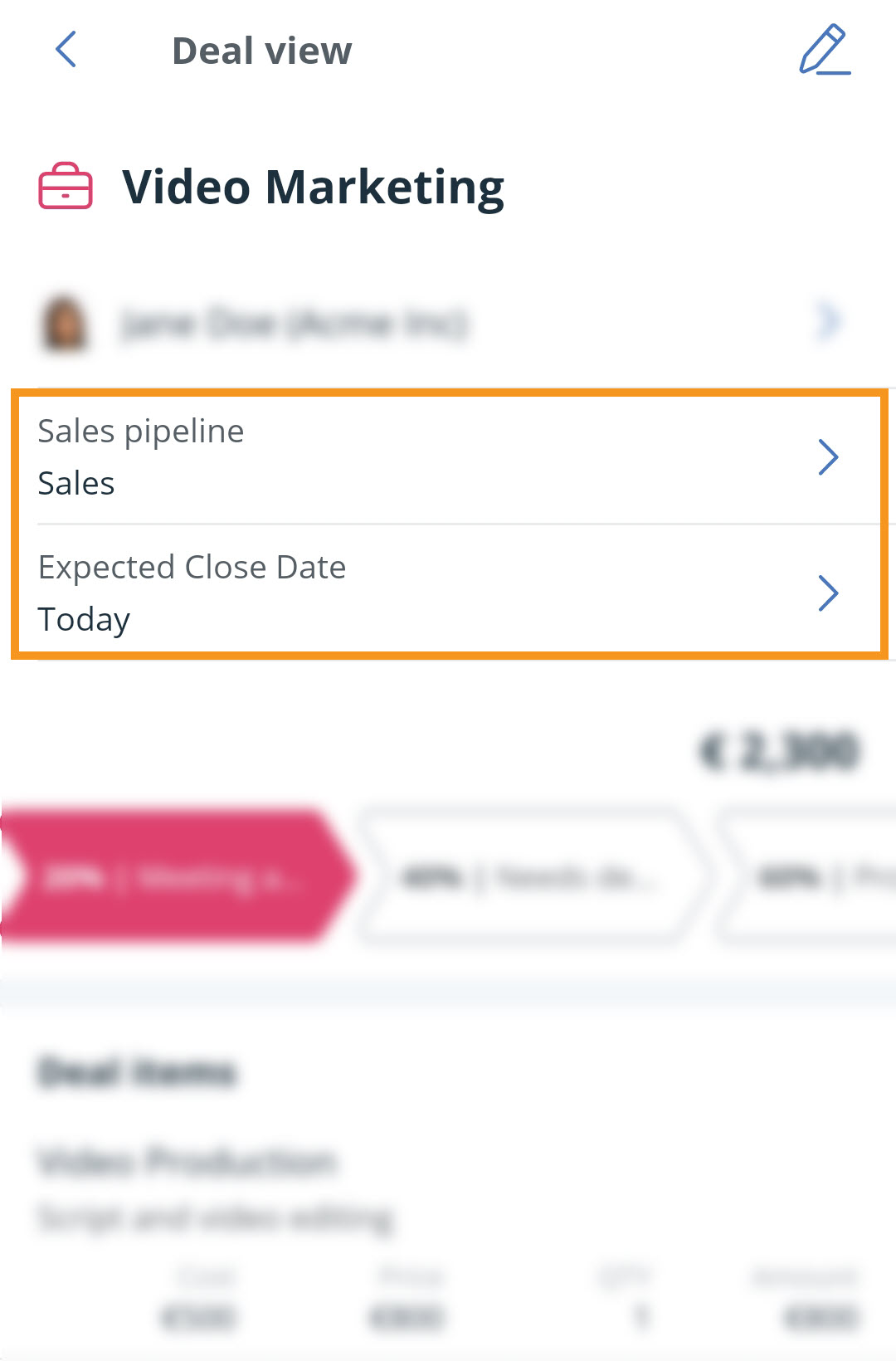
Use the Quick edits to change the Pipeline the deal is in or the expected close date.
3
Tap the pencil icon to update:
Commission, Cost, Multi-month
Deal name
Pipeline
Expected close date
Amount
Deal items
Description
Deal Custom fields
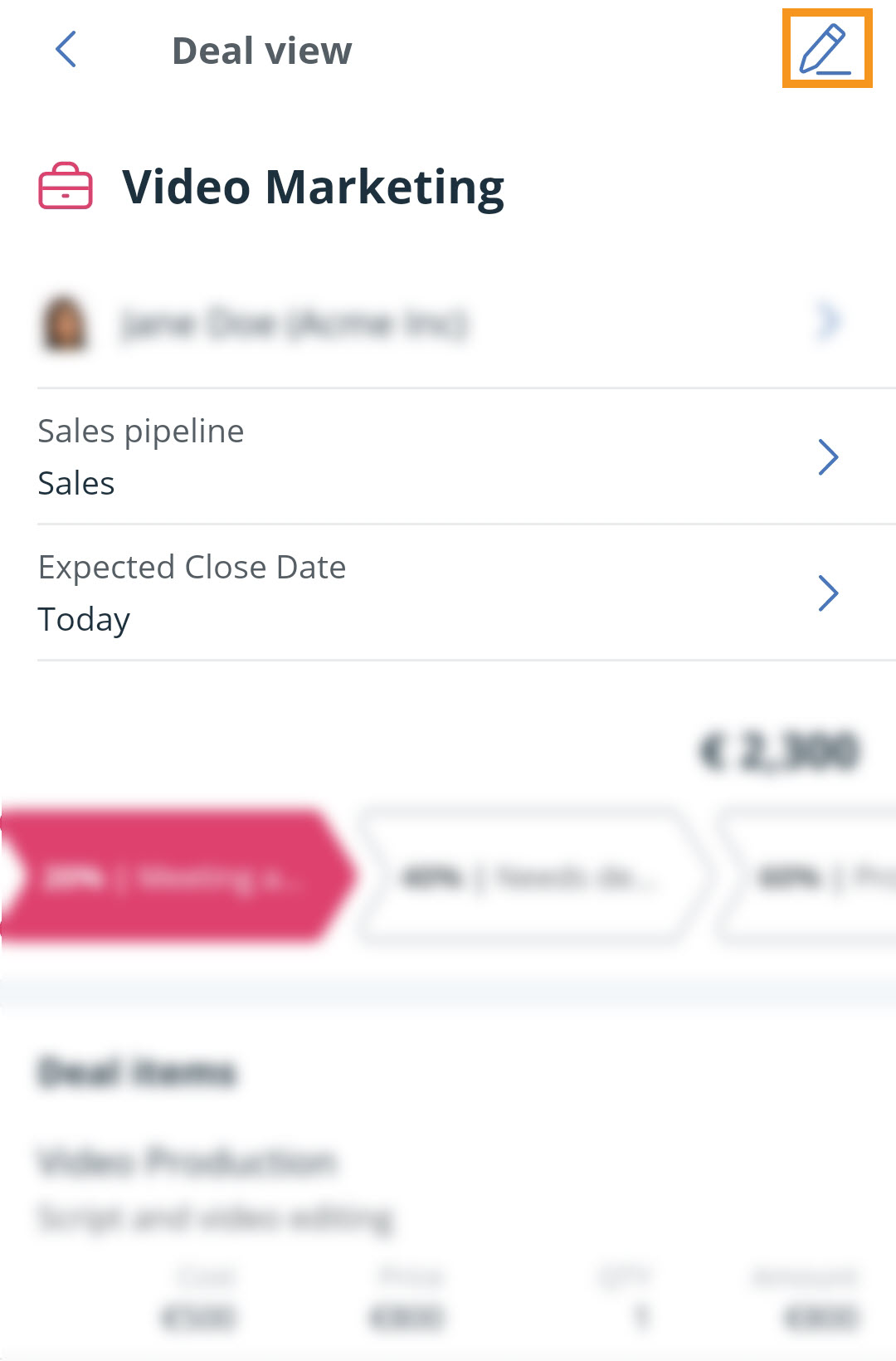
💡 Add attachments by clicking on the paperclip icon.
💡 Add notes and relate them to the deal.
4
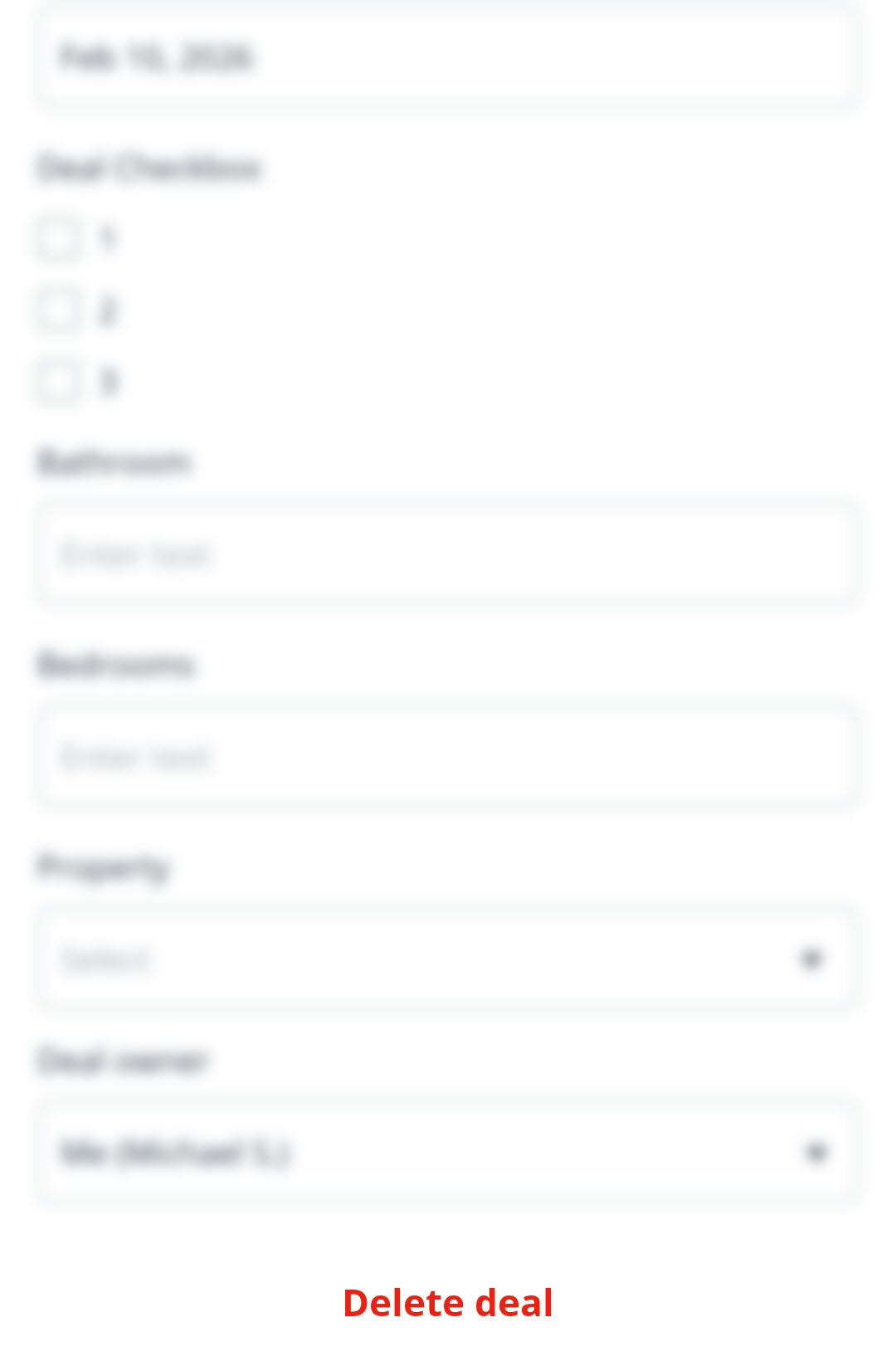
Scroll down and click on Delete Deal.
💡 On iOS, you can also swipe left on a deal on the Pipeline and tap the bin icon to delete it.

