Email Sync Rules
Understand how OnePageCRM syncs emails, including how emails are captured, logged, and what rules affect email visibility in your CRM.
In this article:
| Stored Emails |
| Excluded emails |
Stored Emails
Once you connect Gmail/Outlook 365 or IMAP/SMTP, emails to and from existing contacts are automatically logged in OnePageCRM. You can view them in the:
On the Email page, the store email icon shows which contacts have the email saved in their activity timeline.
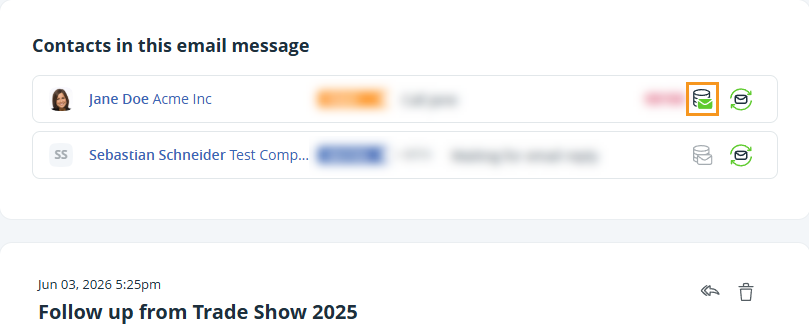
💡 If multiple contacts share the same email address, the system saves the email to the first contact created.
💡 You can also assign it to another contact by clicking the store email icon.
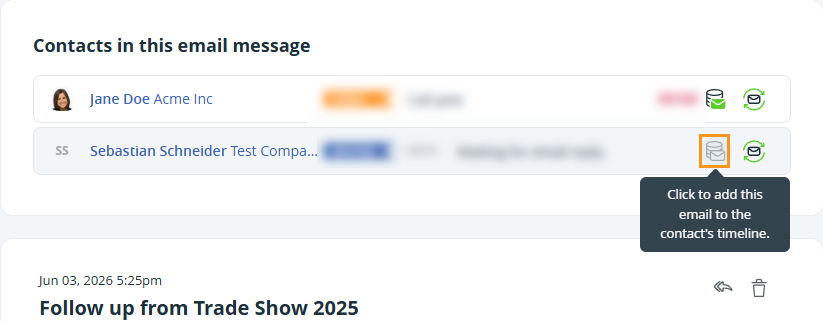
💡 You can move an email from one contact to another. This removes it from the original contact and assigns it to a new one.
💡 Two-way sync doesn’t include past emails unless you choose to fetch historical emails.
💡 You can also forward emails manually using your Email Capture Address.
Excluded emails
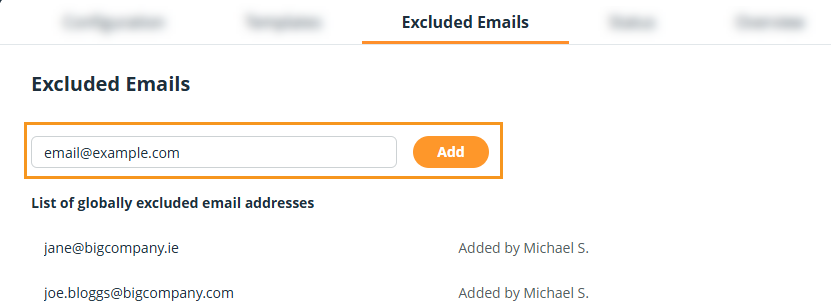
Jump up to Article's Overview ⮝If you don’t want emails with a contact to be logged in OnePageCRM, add their email address to the Excluded list.
Do this from the Email Configuration → Excluded list → add email address → click on Add
Enter the email and save
💡 If that email is later removed from the list, you’ll receive a notification so you know emails will start logging again.
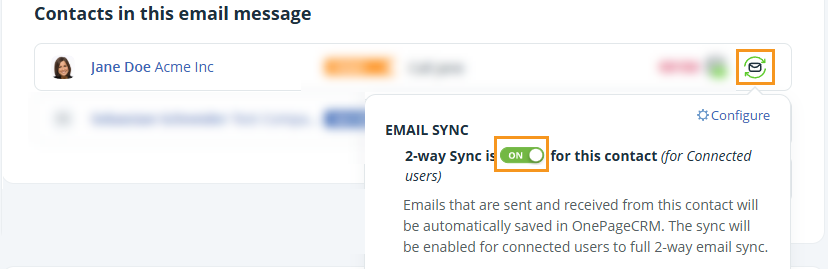
You can also turn off email sync for a specific contact by switching the toggle off.