
Focus Mode
The Focus mode allows you to customize your Action Stream so you can stay focused on the tasks at hand for any given day.
In this article:
| Enable Focus Mode |
| Configure Focus Mode |
Enable Focus Mode
Go to the Action Stream and click the Focus icon in the top-right corner.
This will open the dropdown menu:

💡 The green dot on the Focus icon indicates that it is enabled.
💡 The Focus Mode will only customize your own Action Stream.
💡 The Focus Mode is a direct replacement of the upcoming Action Stream list.
Configure Focus Mode
Jump to Article's Overview ⮝Here's a short overview of what each Setting does in the Focus Mode.
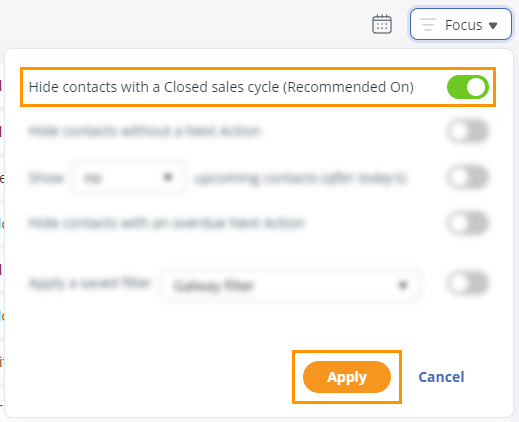
Hide contacts with a Closed sales cycle (turned on by default) lets you focus on open opportunities.
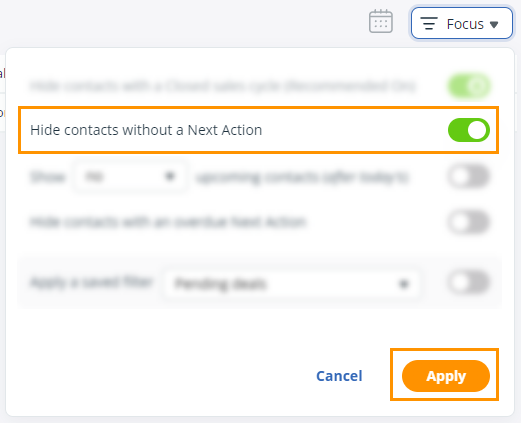
Hide contacts without a Next Action (Recommended On) displays only the contacts with Next Actions.
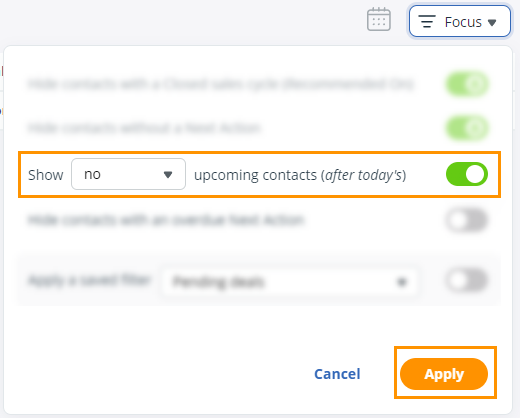
Show X-dropdown upcoming contacts (after today's) displays contacts that have future Next Actions (after today's date). You can choose between 5-20 contacts that have Actions scheduled within 1-7 days after today.
Hide contacts with an overdue Next Action lets you remove any overdue distractions.
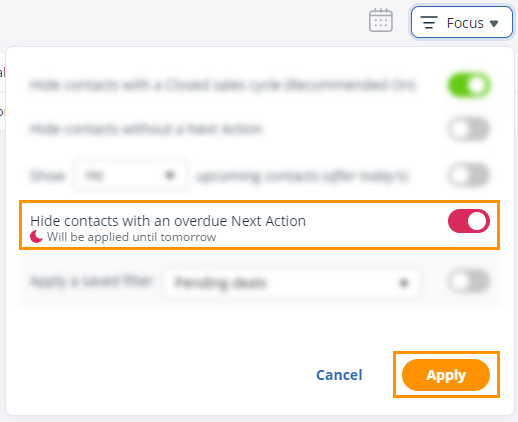
💡This setting will be automatically disabled after midnight and is indicated by a red half-moon (we dubbed it the Cinderella feature).
Apply a saved filter (dropdown) shows only contacts that match the selected Saved Filter.
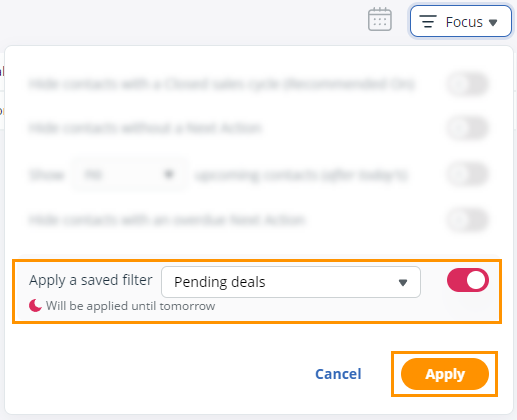
💡 This setting will be automatically disabled after midnight.
💡 When ‘Apply a saved filter’ is enabled, the other options are automatically disabled and cannot be enabled manually.