
Predict revenue with the Pipeline Forecast View
The Forecast View gives you an overview of your Team's performance against their set targets and predicts your revenue.
Here, you can see a summary of Pending and Won deals by month, quarter, or year. It allows you to set targets for your sales team and easily access the Deal list.
In this article:
| View deals on the Pipeline Forecast View |
| Display Deal amount totals |
Manage deals in the Forecast View
Jump up to Article's Overview ⮝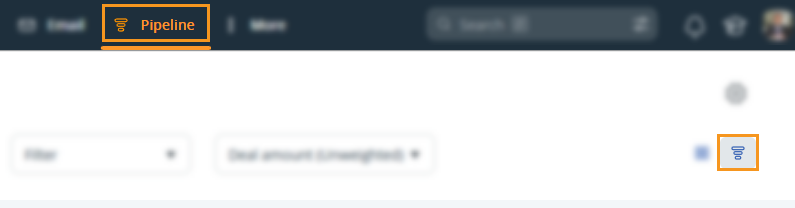
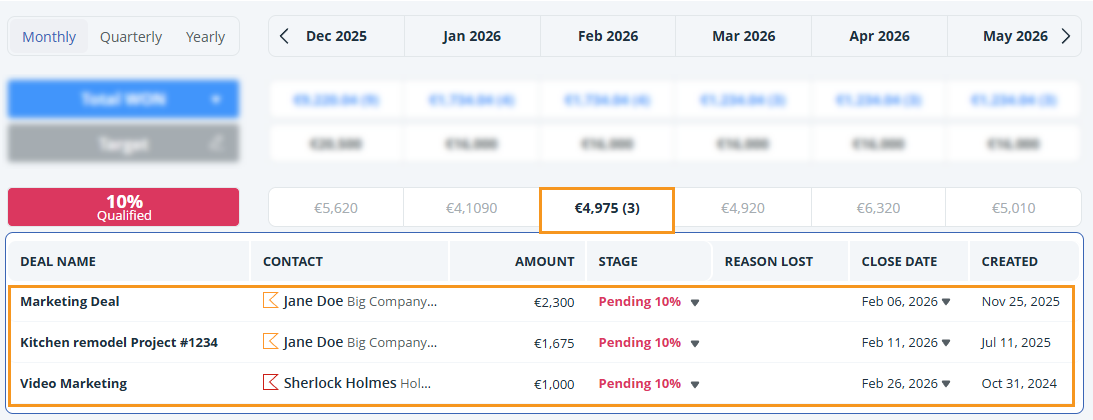
💡 If you are using Multiple Pipelines, the Forecast view is specific to the selected Sales Pipeline.
To update a deal in Forecast view, choose a new stage from the dropdown in the pop-up, and it will update accordingly.
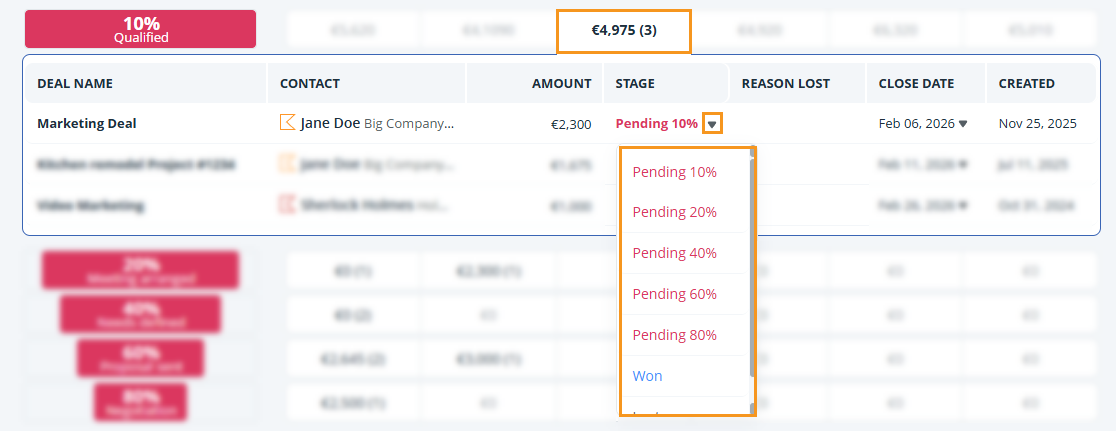
💡 Deal amounts and counts update instantly when you move a deal between stages.
💡 Select which deal details appear in the Forecast pop-up by adjusting the Deal List headers.
💡 See here for further information about how to filter the Pipeline.
Display Deal amount totals
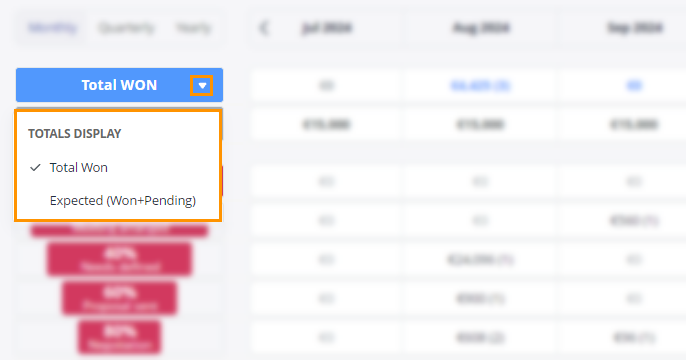
Jump up to Article's Overview ⮝There are two options to display the total amounts in the Forecast View.
- Total won = Only won amounts
- Expected total = Won + Pending amounts
💡 You can also customize sales target values in the Forecast view.