
Send and store emails

If you connect your email account to OnePageCRM, you will be able to send and receive emails to CRM contacts directly from OnePageCRM.


Business plan: up to 450 emails per user/day

Professional plan: up to 250 emails per user/day

Legacy plan: up to 200 emails per user/day


In this article:

Send emails individually from a contact
Send emails individually from Email Page
Send emails in bulk

Send emails individually from a CRM contact


Select the downward arrow → click Send email.
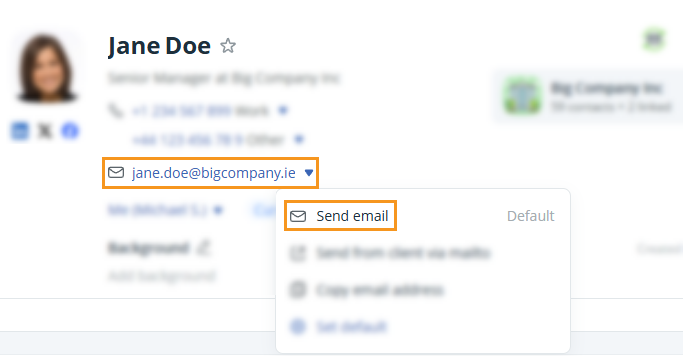
Contact Page l email address dropdown


Send emails individually from Email Page

Jump up to Article's Overview ⮝

OnePageCRM has a fully operational email inbox inside your CRM account.

1
Go to your Email Page → click New Email.

Email Page l New Email


2
Add the contact email address in To: field.

New Message | Contact email address


💡 If the email matches a CRM contact, it will appear in a dropdown for selection.

💡 If the email isn’t linked to a CRM contact, you’ll need to add the contact before sending by clicking the blue plus (+) icon before sending.

💡 Bulk emails cannot be sent from the Email Page.


1
Select the appropriate contacts from any list view in the CRM → in the bulk update menu at the top, click on Email.

Select appropriate contacts | in the bulk update menu click on Email.

💡 You can also select contacts using predefined filters in the CRM, such as tags, status, lead source, or previously saved filters.


2
In Step 1: Create master email and preview, type your email message or choose a Template.

Draft email message

💡 Variables appear in red text and will automatically populate for each contact.

💡 You can use variables in the subject line of your templates.


3
Click Preview to view the emails.

Preview email message


4
In Step 2: Preview emails with option to tweak you can:

  • Personalize email content by selecting the Edit individually link.
  • Look through the individual emails using the left and right arrows.
  • Click Send All once you are happy with your email messages.

    Edit bulk emails individually


    💡 Bulk emails are received individually, so contacts won’t see each other’s addresses.

    💡You can send up to 30MB per email in attachments.

    💡 If you choose to 'open in your email client', your email signature will lose its formatting as Mailto links do not support HTML.


    To view your sent bulk emails, open the Email Page → go to the Sent folder (left-hand side) → click on the dropdown arrow to view the list of contacts you emailed.

    Email Page | Sent Folder | Bulk email

    💡 You can also click on each email to view it separately.

    💡 Email Open Tracking (Business Plan only) shows who opened your emails.

    Did this answer your question? Thanks for the feedback There was a problem submitting your feedback. Please try again later.

    Still need help? Contact Us Contact Us