
Configure Click to Call
Calling your contacts is an integral part of your sales process.
To help you save time and reduce clicks when dialing, you can now set up Click to Call. Once Click to Call is configured, you will be able to click on any phone number in OnePageCRM and have it trigger a call or text message via your chosen call/VoIP provider.
A separate VoIP account with Click-to-Call is required. See suggestions here.
In this article:
| What is Click-to-Call? | Make a call to a contact |
| Configure Call and Message | Send Text Messages to a contact |
| VoIP providers with Click-to-Call Feature |
|
What is Click-to-Call?
The Click-to-Call feature converts phone numbers within the CRM into clickable links in order to call or send a text message to a contact or organization with your connected VoIP provider.
Once connected, you can click on a phone number in the CRM, for example, on the Contact Page, and initiate a call via the VoIP provider.
💡 Find a list of VoIP providers that include a click-to-call feature here.
Configure Call and Message
Jump up to Article's Overview ⮝| Configure Call handler |
| Call handler options |
| Configure text message handler |
| Select the text handler option |
Configure Call handler
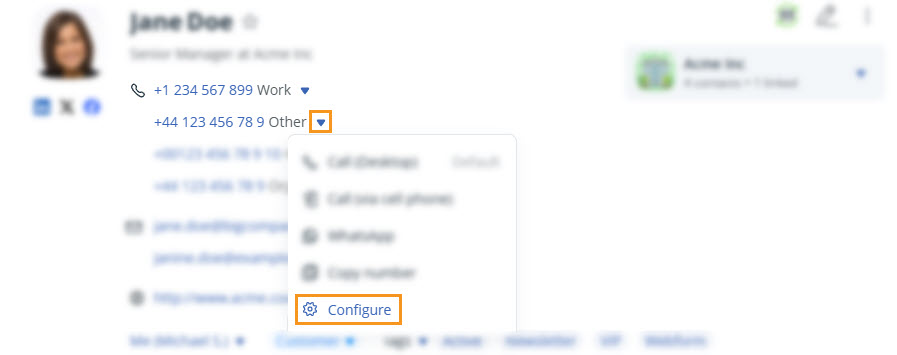

💡 If you are unsure which option to pick, see here as well.
💡 With a custom call handler, check your provider for the correct syntax (examples here).
💡 Each user needs to configure their own click-to-call feature.
💡 Your browser and OS settings decide which app opens phone numbers.
Select the call handler option
In OnePageCRM, you can select from the following call handler options:
| Call handler | Description |
|---|---|
| tel: | Default app/VoIP provider selected for your PC under the default settings. |
| WhatsApp (desktop app) | Select to configure the click-to-call feature with your WhatsApp account. |
| FaceTime | Select to configure the click-to-call feature with your FaceTime account. |
| Aircall | Select to configure the click-to-call feature with your Aircall account. |
| Telegram | Select to configure the click-to-call feature with your Telegram account. |
| callto: | Default app/VoIP provider selected for your PC under the default settings. |
| sip: | Select to configure the click-to-call with a SIP-based VoIP app (e.g. Zoiper, Bria, 3CX). |
| Custom handler | Select to configure the click-to-call with a custom handler. |
💡 We recommend saving contact numbers with their international dialing codes (e.g., +1, +49, +353)
Configure Text message handler

💡 If you are unsure which option to pick, see here as well.
💡 With a custom call handler, check your provider for the correct syntax (examples here).
💡 Each user needs to configure their own click-to-call feature.
Select the text handler option
In OnePageCRM, you can select from the following text handler options:
| Text message handler | Description |
|---|---|
| WhatsApp (desktop app) | Select to configure the click-to-call feature with your WhatsApp Desktop App. |
| WhatsApp (browser) | Select to configure the click-to-call feature with WhatsApp Web. |
| Telegram | Select to configure the click-to-call feature with Telegram. |
| iMessage | Select to configure the click-to-call feature with iMessage. |
| Custom | Select to configure the click-to-call with a custom handler. |
💡 iMessage is only available for Mac and iOS users.
Examples: VoIP providers with click-to-call features
Jump up to Article's Overview ⮝If you are using a VoIP provider that is not included on the list below and you are unsure if they support click-to-call, please get in touch with their Customer Support to find out.
Make a call to a contact
Jump up to Article's Overview ⮝

💡 Start a call from the Contacts page by selecting a contact, choosing the number, click Call.

Send a Text Message to a contact
Jump up to Article's Overview ⮝Open the appropriate contact → click on the downward arrow (↓) to select Send message → the + Call option will open automatically.

💡 Text messages aren’t auto-saved in the CRM. You can add a note or call note instead.