
How to create text message templates
Text message templates are available on the Business and Max plans. Upgrade here.
Speed up communication with Text Message Templates. Create reusable messages and send them to contacts through WhatsApp, Telegram, and iMessage.
In this article:
| Create text message templates |
| Use text message templates |
| Add Variables to Text message templates |
Create text message templates
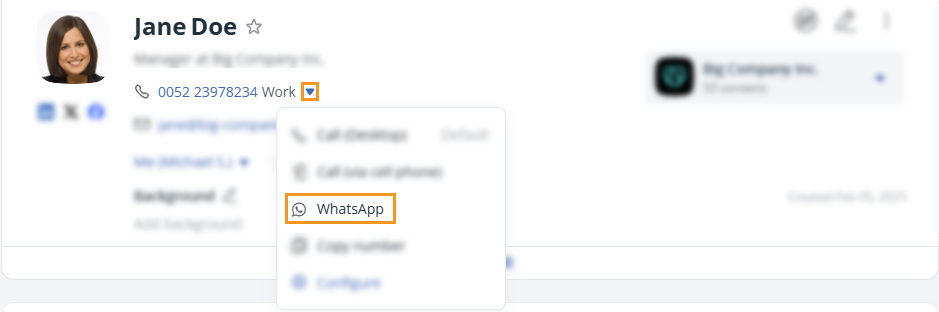
💡 Select the corresponding handler to send a message:
- Telegram
- iMessage
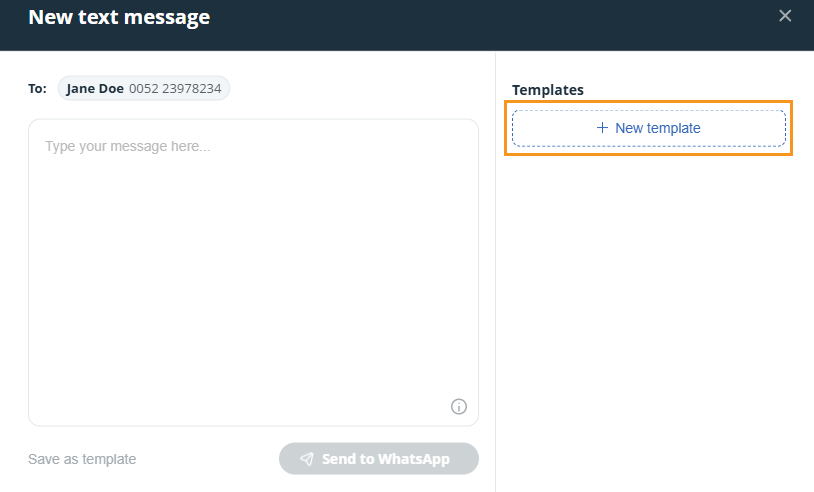

💡 You can save up to 1,000 templates.
💡 To apply formatting to your WhatsApp template, place the symbols (* for Bold and _ for Italic) at the beginning and end of your message. Telegram requires double symbols (**, __) at the beginning and end.
💡 Template formatting is not applicable for iMessage.
Use text message templates
💡 For Telegram, you must pre-log in to the Web or Desktop to use it.
💡 Select the corresponding handler to send a message:
- Telegram
- iMessage
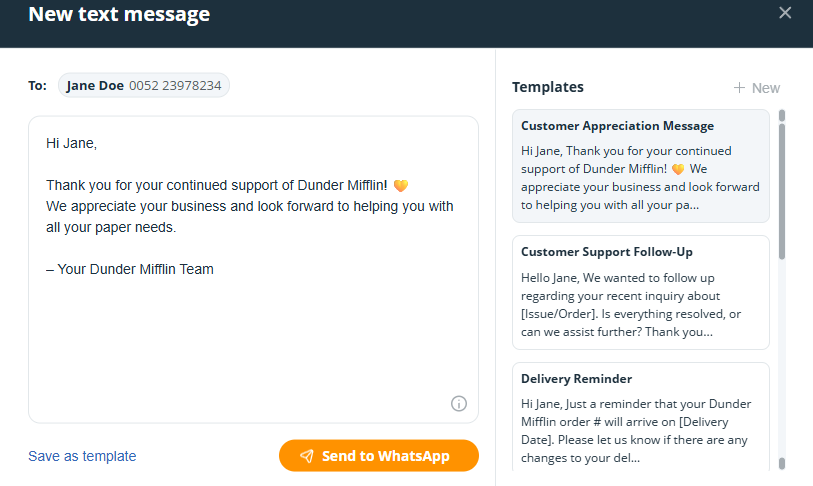
💡 To apply formatting to your WhatsApp template, place the symbols (* for Bold and _ for Italic) at the beginning and end of your message. Telegram requires double symbols (**, __) at the beginning and end.
💡 Template formatting is not applicable for iMessage.
Add Variables to Text message templates
Adding variables is a simple way of personalizing your text messages.
While creating a new or editing an existing template → click on Variable → choose from the dropdown → click Save.

💡 First name appears as [contact.firstname,fallback=], Last name appears as [contact.lastname,fallback=], etc.
💡Variables have a fallback option for you to add.
E.g., "Hi [contact.firstname,fallback=there]", means that if there is no contact first name, it will default to Hi there.
You can choose from the following:
- First name
- Last name
- Full name
- Organization name
- Job title
- Contact address
- Contact or Organization Custom Fields