
WhatsApp Business Sync
The WhatsApp Business Sync is available on the Business and Max plans. Upgrade here.
Connect your WhatsApp Business account to OnePageCRM to send, receive, and reply to WhatsApp messages without leaving your contact records. Every message syncs in the WhatsApp widget against the contact.
- Only the Account Owner or Admin can configure and manage the integration.
- You need a separate WhatsApp Business account.
In this article:
| Connect/Disconnect WhatsApp Business Sync | See unread WhatsApp messages |
| Send and receive WhatsApp messages in the CRM | WhatsApp CRM Widget |
Connect/Disconnect WhatsApp Business Sync
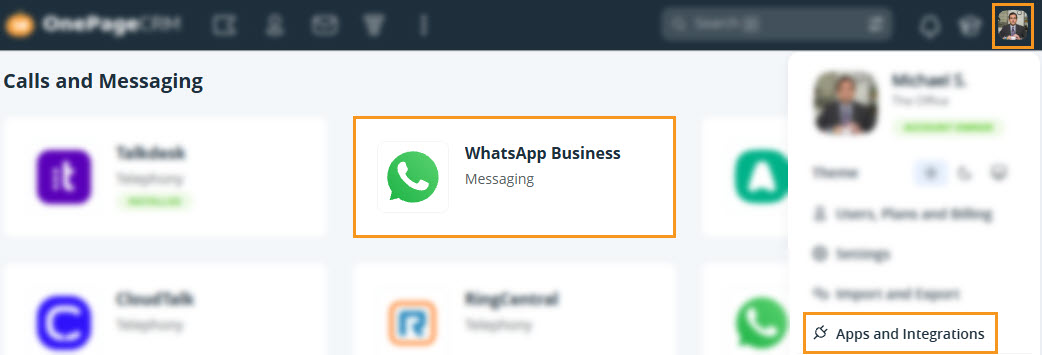
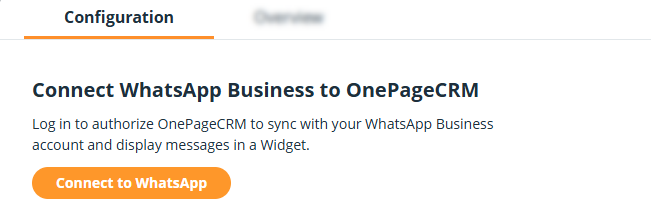
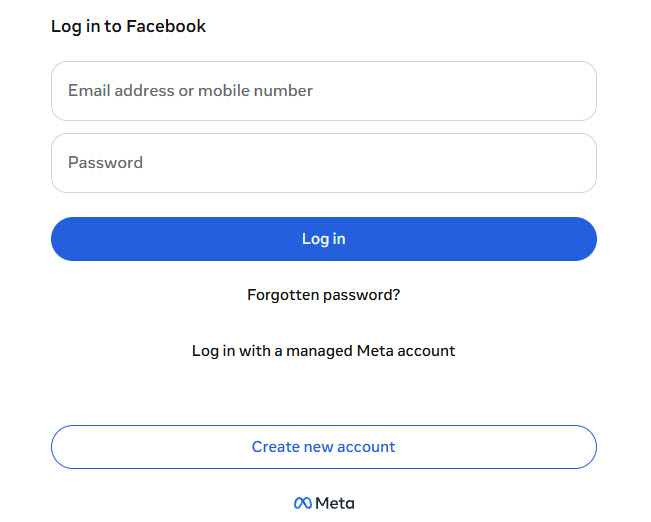
💡 Import up to six months of message history. This can only be done when connecting for the first time.
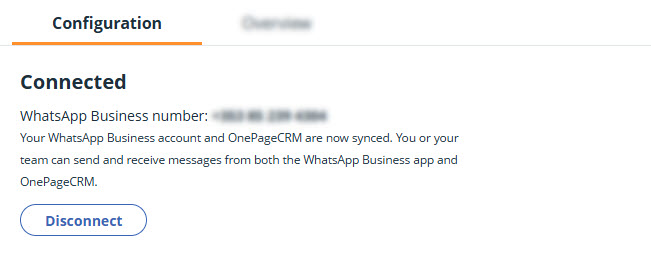
💡 Disconnecting applies to your whole account, not just you.
💡 Reconnecting later won't re-import your message history.
Send and receive WhatsApp messages from OnePageCRM
Jump up to Article's Overview ⮝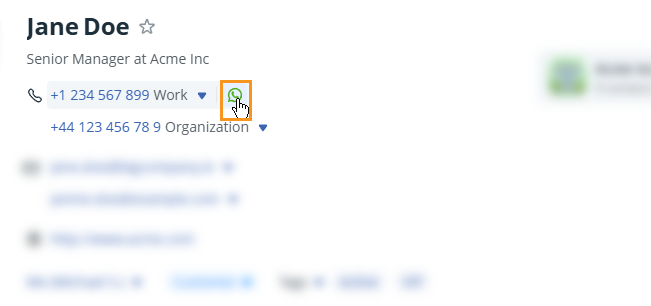
💡 WhatsApp allows a single attachment per message.
💡 Replies appear in the same window and save automatically against the contact.
💡 It does not support landlines, fax, and other non-mobile numbers.
💡 Delete messages in WhatsApp directly, and changes sync back automatically.
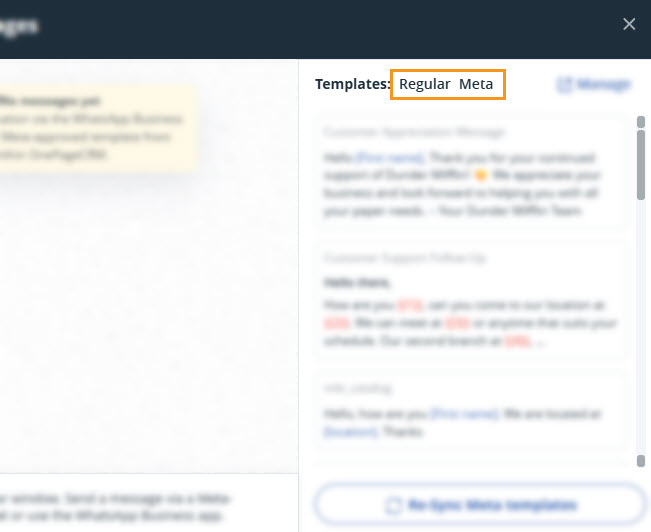
Send free-form WhatsApp messages within 24 hours of a contact’s last message. Outside this window, or to contact someone who hasn’t messaged you, use a Meta-approved template.
👉 For example:
-
A contact messages you, and you can reply freely within 24 hours after receiving this message.
“Hi John, thanks for getting in touch!”
-
If 24 hours have passed since the contact messaged you, you must use a Meta-approved template.
“Hi John, just following up on your recent enquiry. Would you like to arrange a call?”
💡 Create/edit templates in Meta Business Suite.
💡 Once a new Meta template is approved, click on Re-sync Meta Templates to import it.
See unread WhatsApp messages
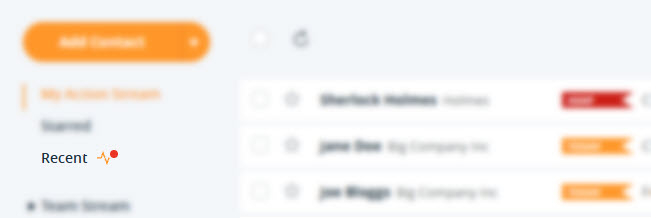
Jump up to Article's Overview ⮝View messages in the Widget panel or the Recent filter on the Action Stream.
A lifeline icon with a red dot appears next to the Recent tab when there are new messages. It shows contacts with unread activity across WhatsApp and email, sorted by latest activity.
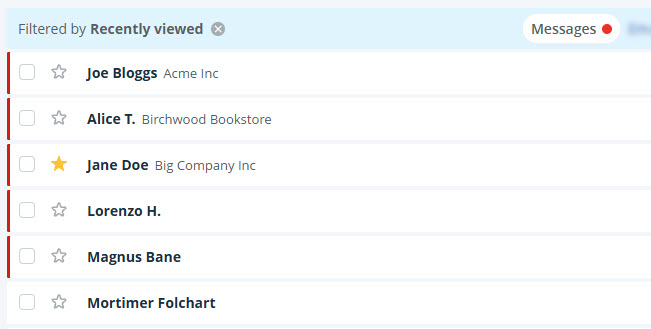
💡 Unread messages are marked with a red line.
💡 A red dot appears on the Messages and Emails tabs when there's new activity.
Find/Use the WhatsApp Widget
Jump up to Article's Overview ⮝The WhatsApp Widget on a contact shows your message history with that contact.
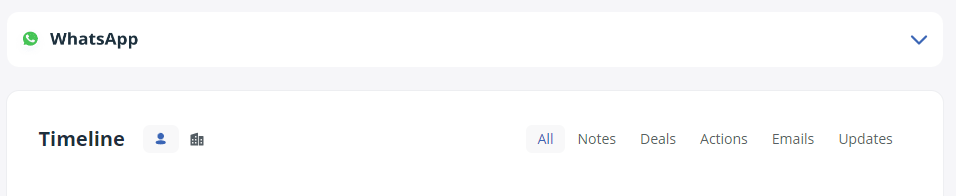
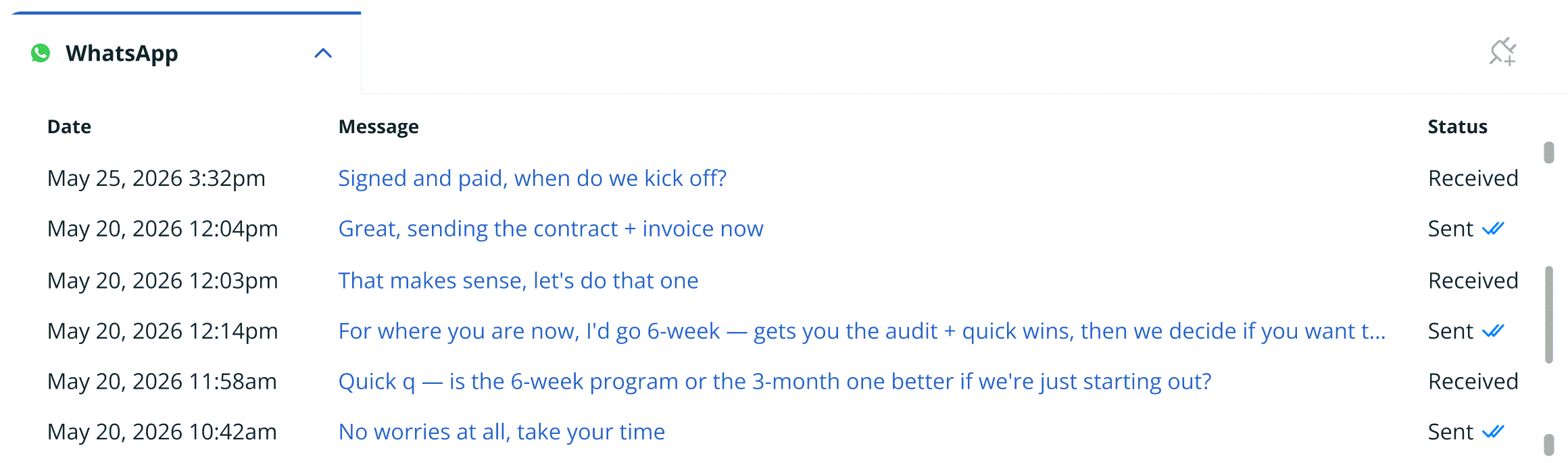
💡 Messages stay with the contact even if their phone number changes or is deleted.