Status Labels
Using Status labels in OnePageCRM supports you in managing each stage of your sales pipeline.
By setting a status for your contacts, the Status focuses the entire organization on moving contacts through the sales funnel.
Only the Account Owner or Admins can add/edit/remove Status labels.
In this article:
| Manage Status Labels | Assign Status Labels in bulk |
| Assign Status Labels | Filter contacts by Status Labels |
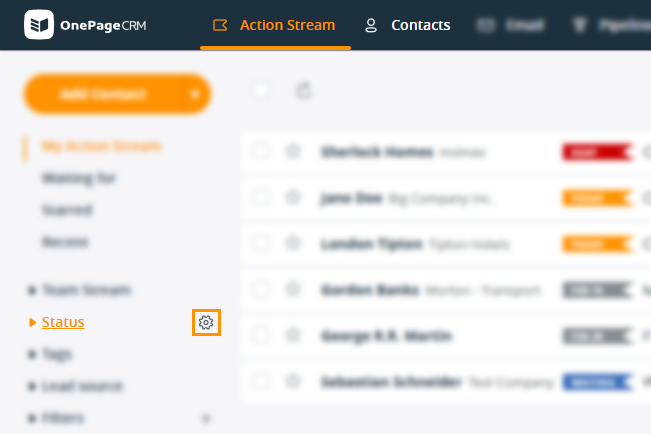
Add/Edit/Remove Status labels
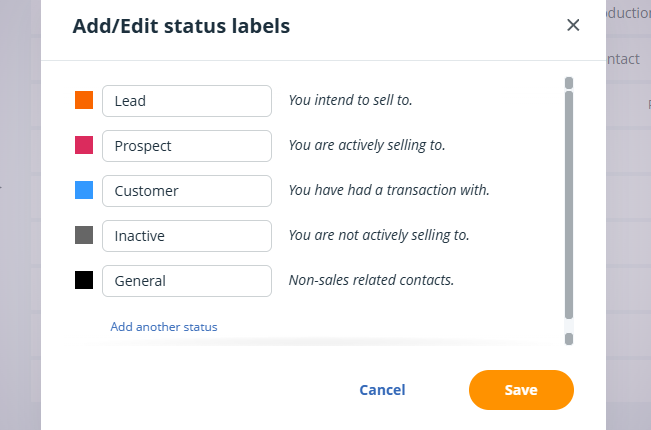
💡 Hover over a Status and click on the X icon to delete the Status.
💡 Hover over a Status and click on the arrow to reorder the Status.

💡 The first Status label at the top is the default for your contacts.
💡 When deleting a Status, the contacts will be assigned to the default Status.
💡 In the OnePageCRM Web form, select which Status should be assigned on submission.
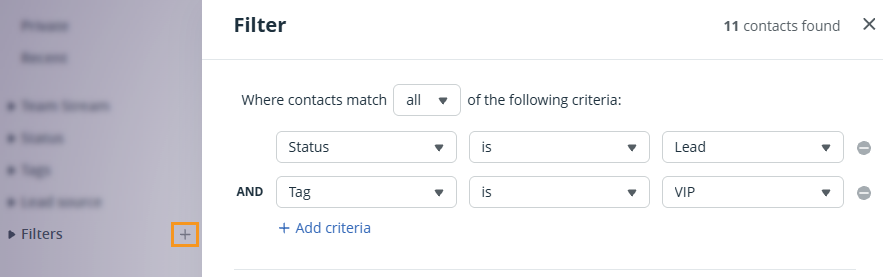
💡 Select Status labels when creating filters in the CRM.
Assign the Status label to individual contacts
Jump up to Article's Overview ⮝Open a contact → click on the current Status → select an option from the dropdown.
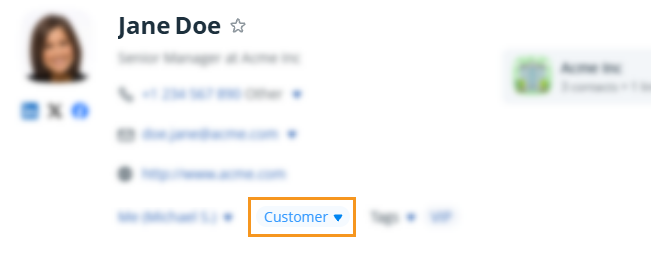
💡 Status labels can also be synced for contacts in the same organization.
Assign the Status label in bulk
Jump up to Article's Overview ⮝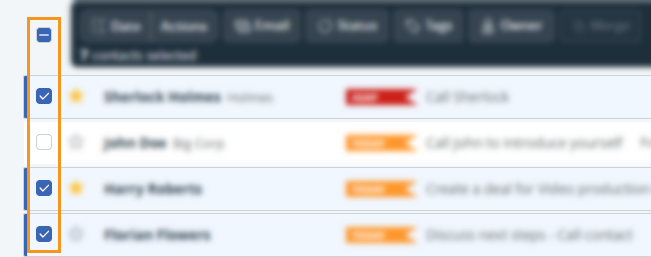
💡 Select the top checkbox → click Select all # contacts in filter to include the remaining contacts.

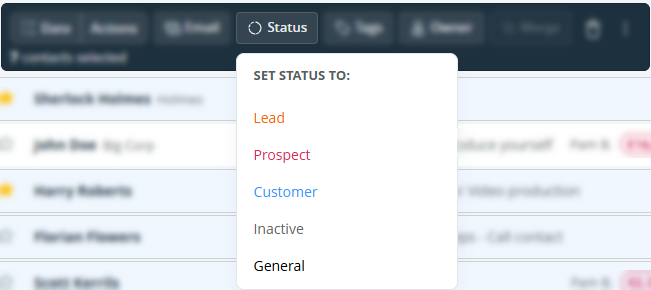
💡 Bulk updates are not recorded in the Last activity filter for the Advanced search.
💡 This update cannot be undone.
💡 See here why some selected contacts have not been updated.
💡 Select the top checkbox → click Select all # contacts in filter to include the remaining contacts.
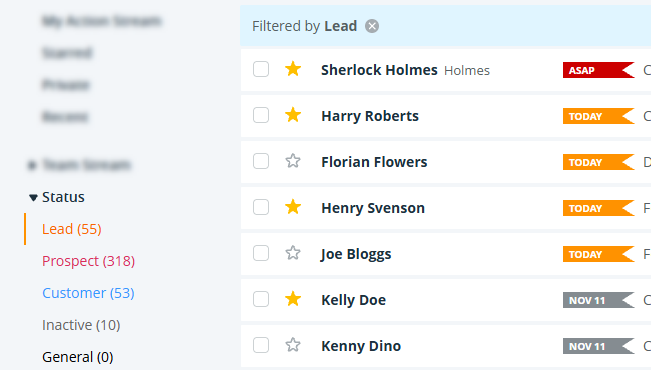
Filter contacts by their Status label
Jump up to Article's Overview ⮝